How do I add someone on Telegram using the QR code?
Welcome to Blackview (World's well-known brand of rugged smartphones, including rugged phone with projector built in, rugged phone with eSIM, and best phone for construction workers, etc.) blog. Hope the guide helps.
Telegram makes it easy to connect with friends, family members, colleagues, and new acquaintances. One convenient way to add someone is by using a QR code, which allows you to access another user's profile without manually entering their phone number or searching for their username. By scanning a code, you can quickly open a Telegram profile and start a conversation.
- Read also: How to check if someone read your message on Telegram?
- Telegram can't receive SMS code? See how to fix
- How to know if someone blocked you on Telegram without messaging them?
- How do I hide my Last Seen and online status on Telegram?
Whether you use an Android phone or an iPhone, the process of connecting through a QR code is relatively straightforward. This guide explains how to scan someone else's Telegram QR code, find and share your own code, troubleshoot common scanning problems, and protect your privacy when adding new contacts.
Understanding Telegram QR Codes
Telegram QR codes provide a convenient way to share profile links and connect with other users. Instead of exchanging phone numbers or typing usernames manually, users can display a QR code that others can scan using a smartphone camera or a compatible QR scanner.
A Telegram QR code generally directs the scanner to a Telegram profile or username link. Once the profile opens, you can review the available information and choose to start a conversation. Depending on the person's privacy settings, you may also be able to view their profile picture, username, and other publicly available details.
However, scanning a QR code does not necessarily mean that the person is automatically saved to your phone contacts. It primarily provides access to their Telegram profile. You may need to initiate a conversation or save their contact separately.
How to Add Someone on Telegram Using a QR Code
The easiest way to connect with someone is to scan their Telegram QR code directly. Before starting, make sure Telegram is installed on your device and that your camera has permission to scan QR codes.
Steps to Scan a Telegram QR Code
- Open Telegram: Launch the Telegram application on your Android phone or iPhone and make sure you are logged into your account.
- Ask the other person to display their QR code: Have them open their Telegram profile and locate the QR code sharing option, if available in their application version.
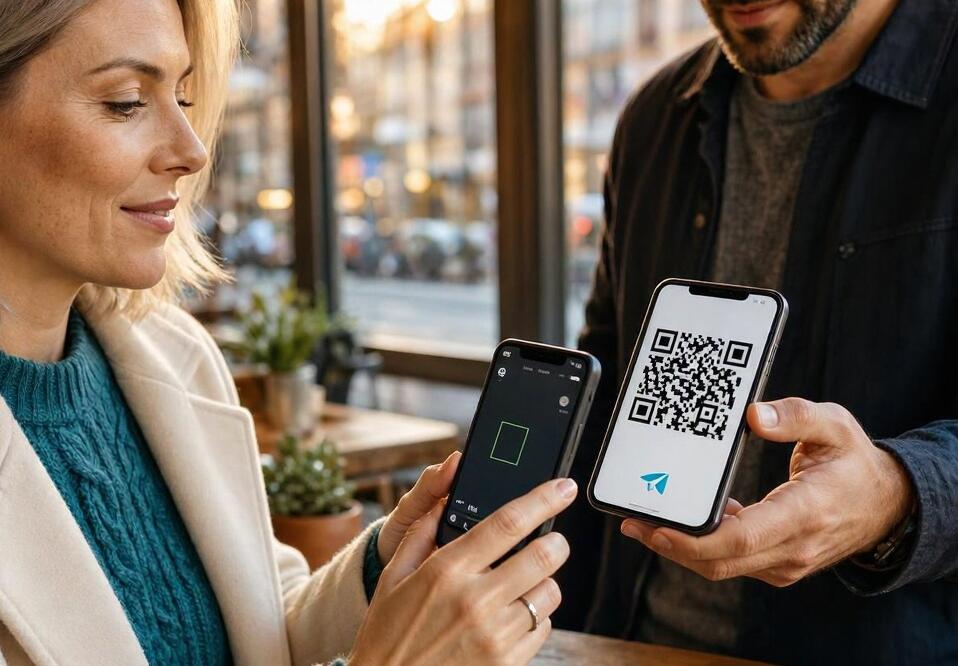
- Open your camera or QR scanner: Use your phone's camera or a compatible QR scanning feature to scan the displayed code.
- Tap the Telegram link: Once the QR code is recognized, a notification or link should appear. Tap it to open the associated Telegram profile.
- Check the profile: Review the username, profile picture, and other available details to confirm that you have opened the correct account.
- Start a conversation: Tap the message option to open a chat and send your first message.
- Save the contact if necessary: Use the available contact-saving option if you want the person to appear in your Telegram contacts.
After completing these steps, you should be able to communicate with the person through Telegram without manually searching for their username.
How to Find and Share Your Telegram QR Code
If someone wants to add you through a QR code, you can share your own Telegram profile link or QR code, depending on the options available in your application.
Finding Your QR Code on Telegram
- Open Telegram on your smartphone.
- Navigate to the Settings or profile section.
- Look for the QR code icon or sharing option, if available in your version.
- Tap the QR code option to display your personal profile code.
- Allow the other person to scan it using their smartphone.
Sharing Your Telegram QR Code
- Open your QR code display screen.
- Look for the Share option.
- Select a messaging application, email, or another sharing method.
- Send the QR code image to the intended recipient.
If your Telegram application does not display a QR code option, you can share your public username link instead. For example, a username link follows this format: https://t.me/username. Replace "username" with your actual Telegram username. The recipient can open the link to access your profile.
Common Problems When Scanning Telegram QR Codes
Although QR code sharing is generally straightforward, you may occasionally encounter problems when trying to connect with another user. Understanding the possible causes can help you resolve them quickly.
QR Code Cannot Be Scanned
A blurry, damaged, or poorly displayed QR code may prevent your camera from recognizing it. Increase your screen brightness, clean your camera lens, and move your phone closer to or farther away from the code. If necessary, ask the other person to display the code again.
The QR Code Opens an Incorrect or Unavailable Profile
Check whether the QR code is genuine and whether the associated Telegram username or profile link is still valid. Usernames can change, and links may become unavailable if an account is deleted or other account changes occur.
Telegram Does Not Open After Scanning
Make sure Telegram is installed and updated to a recent version. If the link opens in a browser, select the option to continue in Telegram. You can also copy the link and paste it directly into the application.
Camera Permissions Are Disabled
If you are using an in-app QR scanner and it cannot access your camera, open your phone's settings and check Telegram's camera permissions. Enable camera access and try scanning again.
Safety Tips for Adding Telegram Contacts with QR Codes
QR codes make connecting easier, but convenience should not replace basic online safety precautions. A QR code can contain a link to a profile or another destination, so always verify the information before interacting with it.
- Scan trusted QR codes: Only scan codes from people or sources you recognize.
- Verify profile details: Check the username and profile information before sending personal messages.
- Avoid suspicious links: Do not open unfamiliar websites or provide login credentials after scanning an unexpected code.
- Protect your privacy: Review Telegram's privacy settings to control who can see your phone number, profile information, and other account details.
- Never share login codes: Telegram verification codes and account authentication details should remain private.
Following these precautions can help you enjoy the convenience of QR code contact sharing while reducing the risk of interacting with fake accounts, phishing links, or suspicious users.
Final Thoughts
Adding someone on Telegram with a QR code is a simple way to connect without exchanging phone numbers or manually searching for usernames. By scanning another person's code, opening their profile, and starting a conversation, you can establish contact in just a few moments. You can also share your own profile link or QR code to make it easier for friends and colleagues to find you.
Remember that Telegram's interface and available QR code options may vary depending on your device and application version. If you cannot find a dedicated QR code feature, sharing a Telegram username link is a practical alternative. Always verify unfamiliar profiles and protect your personal information when connecting with new people. With these steps and precautions, you can make Telegram contact sharing faster, easier, and safer.