How can I whiten yellow teeth in a photo on my phone?
Welcome to Blackview (Well-known brand of rugged phone and tablet) blog. Hope the guide helps.
Taking photos with your smartphone has become part of everyday life, whether you're capturing family gatherings, vacations, professional headshots, or social media selfies. While modern phone cameras produce impressive image quality, they can also reveal small imperfections that may distract from an otherwise great picture. One common issue is yellow-looking teeth, which may be caused by lighting conditions, camera white balance, shadows, or natural tooth color. Fortunately, today's AI-powered photo editing tools make it easy to brighten teeth without requiring advanced editing skills.
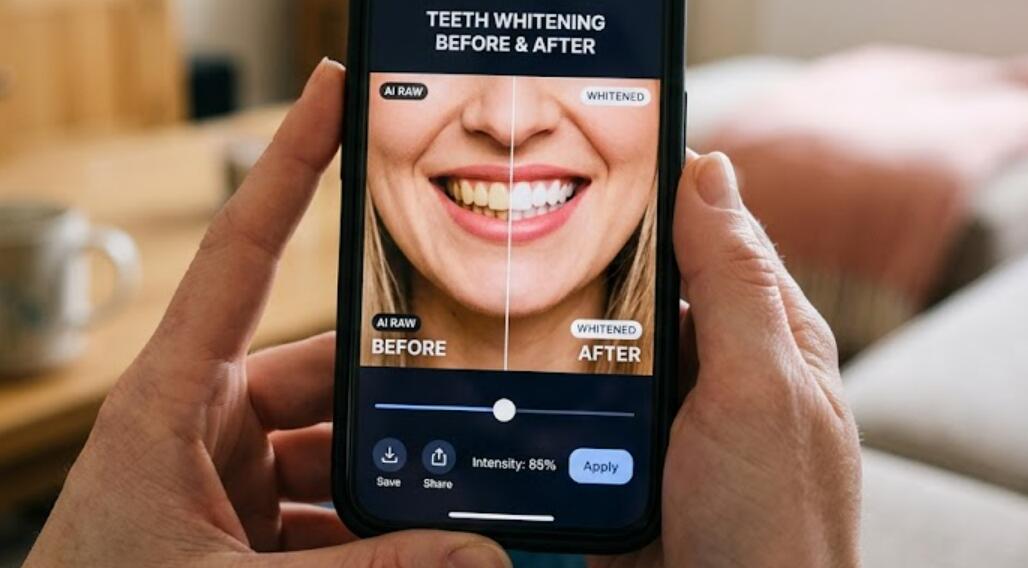
Unlike traditional photo editing, AI technology can automatically detect facial features and apply subtle adjustments only to the teeth, helping preserve a realistic smile. The key is moderation—over-whitening often makes teeth appear unnaturally bright or bluish. This guide explains how to use AI features built into mobile photo editors and introduces several popular AI apps that can whiten yellow teeth while maintaining a natural appearance.
Whether you use an Android phone or an iPhone, you can complete the entire editing process in just a few minutes. Most AI editors provide automatic masking, intelligent color correction, and adjustable whitening intensity, allowing you to fine-tune the result until it looks clean, healthy, and believable.
Why Teeth Look Yellow in Photos
Before editing, it helps to understand why teeth sometimes appear more yellow in pictures than they do in real life. In many cases, the issue is caused by photography rather than your actual smile.
- Warm indoor lighting adds yellow tones to the entire image.
- Camera white balance may shift colors toward warmer shades.
- Shadows around the mouth reduce the brightness of teeth.
- Heavy filters can exaggerate yellow or orange tones.
- Natural enamel color varies from person to person.
- Food, drinks, or smoking stains may also be visible in close-up photos.
Recommended AI Apps for Whitening Teeth
Several AI-powered mobile applications can automatically recognize teeth and apply realistic whitening effects. The following apps are some of the most popular and user-friendly choices.
1. Facetune
Facetune includes a dedicated Teeth Whitening tool that uses AI to detect the smile area automatically. Users simply brush over the teeth or let the AI identify the area, then adjust the whitening strength with a slider. The app makes it easy to create subtle improvements without affecting the lips or skin.
2. AirBrush
AirBrush offers AI-powered portrait retouching with an easy-to-use Teeth Whitening feature. The app can brighten teeth, reduce discoloration, and blend the effect naturally with surrounding facial features. It is suitable for both beginners and experienced mobile editors.
How to Whiten Yellow Teeth Using an AI App
Although each application has a slightly different interface, the editing process is generally very similar.
- Download and install your preferred AI photo editing app.
- Open the app and import the photo you want to edit.
- Select the Portrait, Beauty, or Retouch editing mode.
- Choose the Teeth Whitening or Smile enhancement tool.
- Allow the AI to detect the teeth automatically, or lightly brush over the teeth if manual selection is required.
- Adjust the whitening intensity gradually instead of applying the maximum effect.
- Zoom in to check that only the teeth have been edited.
- Compare the before-and-after preview to ensure the smile still looks natural.
- Save the edited image in high resolution.
Tips for Achieving Natural-Looking Results
AI tools are powerful, but realistic editing depends on using them carefully. Small adjustments usually produce the best outcome.
- Increase brightness gradually instead of making teeth completely white.
- Preserve some natural texture and shading.
- Avoid whitening the gums or lips.
- Match the teeth brightness to the lighting in the photo.
- Review the image at both zoomed-in and full-screen sizes.
- Compare the edited version with the original before saving.
Additional AI Features That Improve Portraits
Many AI editing apps include other portrait enhancement tools that work well alongside teeth whitening.
Skin Smoothing
Light skin smoothing can reduce minor blemishes while preserving facial details. Avoid excessive smoothing that removes natural skin texture.
Lighting Enhancement
AI lighting adjustments can brighten shadows around the face, making the smile appear cleaner without increasing teeth whitening too much.
Color Correction
Correcting the overall white balance often reduces yellow color casts throughout the image, including the teeth.
Portrait Enhancement
AI portrait optimization can improve contrast, sharpness, and facial balance, helping the entire photo look more polished rather than focusing only on the smile.
Common Mistakes to Avoid
Even with advanced AI, certain editing habits can make photos look unrealistic.
- Applying maximum whitening strength.
- Making teeth brighter than the whites of the eyes.
- Editing only one section of the smile.
- Ignoring the surrounding lighting conditions.
- Using multiple whitening filters on the same image.
- Saving the photo with excessive compression that reduces image quality.
AI-powered mobile editing has made it remarkably easy to whiten yellow teeth in photos while keeping the final result natural and believable. Apps such as Facetune, YouCam Perfect, and AirBrush use intelligent facial recognition to target only the teeth, allowing users to brighten their smiles with just a few taps. By making moderate adjustments instead of extreme ones, you can enhance your portrait without making the edit obvious.
A great smile should look healthy rather than artificially perfect. Combining AI teeth whitening with gentle lighting correction, balanced color adjustments, and subtle portrait enhancements will usually produce the most realistic outcome. With the right app and careful editing, your smartphone can transform an ordinary photo into a polished image that looks professional while still reflecting your natural appearance.