How to remove wrinkles from clothes in a photo on your phone?
Welcome to Blackview (Well-known brand of rugged smartphone and tablet) blog. Hope the guide helps.
Wrinkled clothing in a photo can distract from an otherwise perfect image. Whether you're posting on social media, creating product photos, or sharing professional portraits, visible fabric creases may make the picture appear less polished. Fortunately, modern smartphone photo editing apps use advanced AI and retouching tools that make it easy to smooth wrinkles without affecting the natural appearance of the clothing.
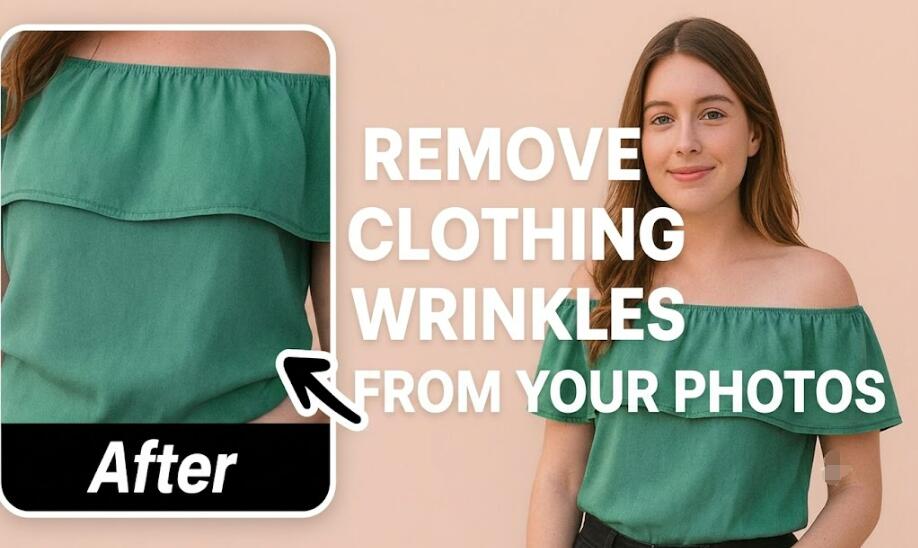
You don't need professional editing software or advanced photography skills to remove clothing wrinkles. With just a few taps, you can use built-in editing tools or third-party applications to retouch fabric while preserving its texture, shadows, and overall realism. This guide explains the best methods, step-by-step instructions, useful tips, and common mistakes to avoid when removing wrinkles from clothes in a photo using your phone.
Before you begin editing, choose the highest-quality version of your photo. Higher-resolution images preserve more details, making it easier for AI or healing tools to blend edited areas naturally. If possible, avoid heavily compressed images because they may produce less realistic editing results.
Best Ways to Remove Wrinkles from Clothes in a Photo
Several mobile editing methods can effectively reduce or remove clothing wrinkles. The right option depends on the complexity of the wrinkles and the editing app you prefer.
Use an AI Photo Retouch Tool
Many modern editing apps like Photoroom and Canva include AI-powered retouching features that automatically smooth clothing while maintaining realistic textures.
- Open your preferred photo editing app on your phone.
- Import the photo containing wrinkled clothing.
- Select the AI Retouch, Enhance, or Object Removal feature.
- Choose the clothing area with visible wrinkles.
- Allow the AI to analyze and smooth the selected region.
- Review the result and adjust the intensity if necessary.
- Save the edited image in high resolution.
Use the Healing or Clone Tool
The healing and clone tools are ideal for removing individual wrinkles while keeping nearby fabric patterns consistent.
- Open the image in a mobile photo editor.
- Select the Healing or Clone tool.
- Zoom in for greater editing accuracy.
- Brush gently over the wrinkle lines.
- Repeat the process until the fabric looks smooth.
- Compare the edited area with the original image.
- Export the finished photo.
Apply the Blur and Texture Adjustment Carefully
Minor wrinkles can sometimes be reduced by combining slight blur effects with texture adjustments.
- Duplicate the original image if the app allows.
- Apply a very light blur to the wrinkled area.
- Reduce texture or clarity slightly.
- Restore edges using masking tools if available.
- Avoid excessive smoothing that removes fabric details.
Tips for Natural-Looking Results
Removing wrinkles successfully is not only about making the fabric smooth but also about preserving the clothing's natural appearance.
Edit Gradually
Apply small adjustments instead of removing every fold. Natural clothing usually contains slight texture and soft creases, so leaving subtle details often creates a more realistic result.
Maintain Fabric Shadows
Clothing shadows help create depth and dimension. Avoid removing shadow transitions completely, as this may make the garment appear flat or artificial.
Zoom In While Editing
Working at a higher zoom level allows you to target individual wrinkles more precisely and reduces the chance of affecting surrounding areas.
Common Mistakes to Avoid
Over-editing is one of the most common reasons clothing retouching looks unrealistic. Keeping edits subtle usually produces the best final image.
- Applying excessive smoothing to the entire garment.
- Removing natural folds that define the clothing shape.
- Ignoring lighting direction and fabric shadows.
- Editing at a very low image resolution.
- Saving only a compressed version of the edited photo.
When to Use AI Instead of Manual Editing
Both AI tools and manual retouching have their advantages depending on the complexity of the wrinkles.
Choose AI for Large Areas
AI editing works well for broad sections of clothing with many small wrinkles, saving considerable editing time.
Choose Manual Tools for Precision
If only a few noticeable wrinkles need correction, manual healing or clone tools provide greater control and often produce more accurate results.
Combine Both Techniques
Many editors first use AI smoothing to reduce overall wrinkles and then perform manual touch-ups for the most natural finish.
Removing wrinkles from clothes in a photo on your phone is a quick and effective way to improve image quality without needing professional editing software. Modern mobile apps provide powerful AI features, healing brushes, and texture controls that allow anyone to create cleaner and more polished photos in just a few minutes. By editing carefully and preserving natural fabric details, you can achieve results that look realistic rather than overly processed.
Whether you're preparing photos for social media, online shopping, professional portfolios, or personal memories, learning how to remove clothing wrinkles can significantly enhance the overall appearance of your images. By following the methods and step-by-step instructions in this guide, you'll be able to produce smooth, natural-looking photos directly from your smartphone with confidence.