How to make a baby dancing video with AI on your phone?
Welcome to Blackview (Well-known brand of rugged phone and tablet) blog. Hope the guide helps.
AI-powered video generation has made it easier than ever to create fun and entertaining animations directly from a smartphone. One of the latest trends on social media is the AI baby dancing video, where a photo is transformed into a lively animated clip featuring realistic dance movements, facial expressions, and music. These videos are widely shared on platforms like TikTok, Instagram Reels, and YouTube Shorts because they are humorous, creative, and simple to produce with the help of modern AI tools.
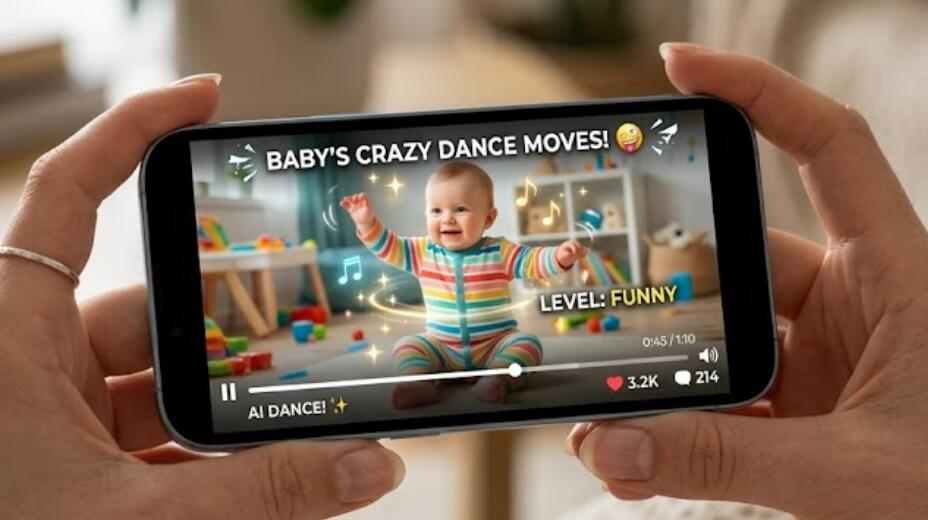
Among the many mobile editing applications available today, CapCut is one of the most popular choices thanks to its built-in AI features, easy-to-use interface, and extensive editing tools. Whether you want to animate a baby's photo, create a cute family video, or produce engaging social media content, CapCut provides an efficient workflow that requires little to no editing experience. This guide explains how to make an AI baby dancing video on your phone using CapCut as the primary example, along with useful editing tips and troubleshooting advice.
The process typically begins with selecting a clear photo, applying an AI animation effect or template, customizing the dance style, and exporting the finished video in high quality. With just a few simple steps, you can create an eye-catching animation that looks professional and is ready to share online.
Prepare Your Materials
Before opening CapCut, gather everything you need to ensure the editing process goes smoothly. Using a high-quality image will significantly improve the final animation generated by AI.
- Choose a clear, front-facing baby photo with good lighting.
- Install the latest version of CapCut on your Android or iPhone.
- Ensure your phone has a stable internet connection for AI processing.
- Prepare background music if you want to replace the default soundtrack.
- Free up enough storage space for exporting HD videos.
Create an AI Baby Dancing Video in CapCut
CapCut offers several AI-powered templates and animation features that can transform a still image into a dancing video. The exact interface may vary slightly depending on your app version, but the overall workflow remains similar.
Step 1: Open CapCut
Launch the CapCut app on your smartphone and sign in if necessary. On the home screen, tap the option to create a new project or browse the available AI templates.
Step 2: Select an AI Dancing Template
Many trending templates are specifically designed for animated portraits and dancing characters.
- Open the Templates section.
- Search for keywords such as "AI Dance," "Baby Dance," or "Photo Animation."
- Select a template that matches your preferred dance style.
- Preview the animation before applying it.
Step 3: Upload the Baby Photo
Choose the baby photo from your phone's gallery. CapCut will automatically analyze the image and prepare it for AI animation.
- Select one high-resolution image.
- Crop the photo if necessary.
- Center the face for better tracking accuracy.
- Confirm the image selection.
Step 4: Generate the AI Animation
Once the photo is uploaded, CapCut processes the image and generates realistic movements based on the selected dancing template.
- Tap the Generate or Use Template button.
- Wait for the AI to complete processing.
- Preview the dancing animation.
- Regenerate if you prefer a different result.
Step 5: Customize the Video
After the animation is generated, personalize the video to make it more engaging.
- Add background music.
- Insert text captions.
- Apply visual filters.
- Adjust brightness, contrast, or saturation.
- Add stickers or transition effects if desired.
Step 6: Export the Finished Video
When you are satisfied with the edit, save the project to your device.
- Tap Export.
- Select 1080p or higher resolution if available.
- Choose 30 or 60 FPS depending on your preference.
- Wait for rendering to complete.
- Share the video directly to your favorite social media platform.
Tips for Better AI Baby Dancing Videos
Although AI handles most of the animation automatically, following a few best practices can noticeably improve the quality of your final video.
Use High-Quality Photos
Sharp, well-lit images with a clear view of the face help the AI detect facial features more accurately and produce smoother animations.
Choose Trending Music
Popular songs and upbeat background music often make short-form videos more engaging and increase their appeal on social media.
Keep the Video Short
Videos between 10 and 20 seconds generally perform well on short-video platforms because they are easy to watch and share.
Add Creative Text
Funny captions, emojis, and animated titles can make the video more entertaining while helping viewers understand the theme immediately.
Troubleshooting Common Issues
If you encounter problems while creating your AI baby dancing video, the following solutions may help.
- Update CapCut to the latest version.
- Check your internet connection before using AI features.
- Use a clearer photo if face detection fails.
- Restart the application if AI generation freezes.
- Free additional storage space if exporting fails.
- Reduce export resolution if your phone has limited processing power.
Why CapCut Is a Great Choice for AI Video Creation
CapCut combines AI-powered templates, automatic editing tools, and an intuitive mobile interface, making it suitable for both beginners and experienced content creators. Its extensive library of effects, music, transitions, and text animations allows users to produce polished videos without requiring advanced editing skills. Regular updates also introduce new AI templates that keep up with the latest social media trends.
Creating an AI baby dancing video on your phone is a quick and enjoyable way to turn a simple photo into an entertaining animated clip. With CapCut's AI templates and editing tools, the entire process—from uploading a picture to exporting a finished video—can often be completed in just a few minutes. Even first-time users can achieve impressive results by following the step-by-step workflow outlined above.
As AI video technology continues to improve, creating personalized animations will become even easier and more realistic. By starting with a high-quality photo, selecting the right CapCut template, and adding your own creative touches, you can produce engaging AI baby dancing videos that are ready to share with friends, family, or your favorite social media audience.