How to make a rat dancing video with AI on your phone?
Welcome to Blackview (Well-known brand of rugged phone and tablet) blog. Hope the guide helps.
AI-powered video creation has made it possible for anyone to produce fun and engaging animated clips without professional editing skills. One of the latest trends on social media is creating dancing animal videos, especially humorous rat dance animations that attract millions of views on platforms like TikTok, Instagram Reels, and YouTube Shorts. With just a smartphone and the right AI video editing tools, you can transform a simple image or AI-generated picture into a lively dancing character in just a few minutes.
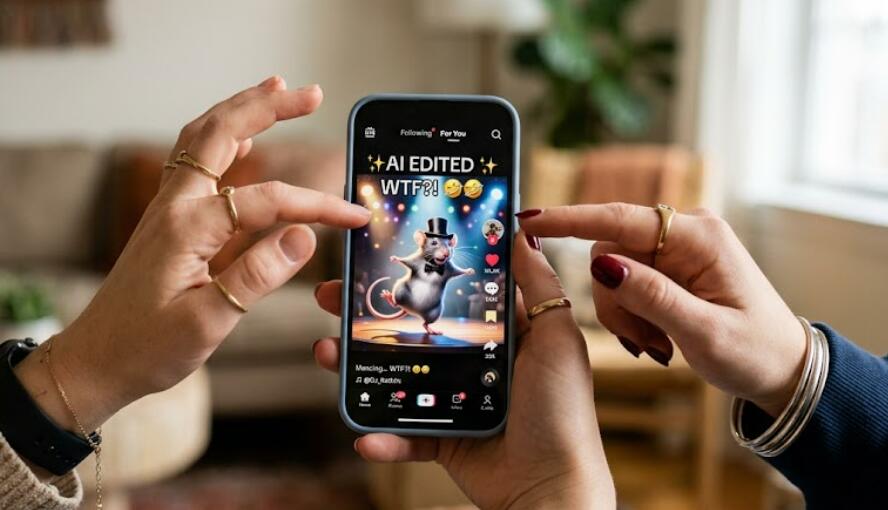
Whether you want to create a realistic dancing rat, a cartoon-style character, or a funny meme animation, the overall workflow is straightforward. You first prepare an image, then animate it with AI motion effects, enhance the video with music and visual effects, and finally export it in a format suitable for social media. This guide explains the complete process, using CapCut as one example for the animation stage while also describing the general workflow that applies to many AI video editing apps.
Creating an AI dancing rat video does not require advanced hardware or editing experience. Most modern smartphones can handle AI-powered editing applications, and many cloud-based features process animations online. As long as you have a stable internet connection and a clear source image, you can create entertaining short videos suitable for sharing with friends or posting online.
Step 1: Prepare Your Rat Image
The quality of your final animation depends heavily on the image you start with. A clean, high-resolution picture allows AI animation models to detect the subject more accurately and generate smoother movements.
Choose or Create an Image
You can use different sources for your rat image depending on the style you want.
- Take a photo of a toy rat or illustration.
- Use your own original artwork.
- Create an original rat image with an AI image generator.
- Select a clear cartoon-style design for humorous videos.
- Use a transparent background if supported by your editing app.
Step 2: Animate the Rat with AI
Once your image is ready, the next step is to apply AI animation that makes the rat appear to dance. Many mobile AI editors provide motion templates, character animation, or image-to-video features. As one example, CapCut offers AI animation tools that can automatically generate dance movements from a still image.
Example Workflow Using CapCut
The exact interface may change over time, but the basic process is generally similar.
- Open CapCut on your smartphone.
- Create a new project.
- Import your rat image.
- Select the AI animation or image-to-video feature if available.
- Choose a dancing motion template.
- Adjust animation duration and movement intensity.
- Preview the generated animation.
- Apply the effect and continue editing.
Step 3: Enhance the Video
After the AI generates the dancing motion, you can make the video more entertaining by adding music, effects, and transitions. These enhancements help create a more engaging viewing experience without changing the basic animation.
Add Background Music
Select music that matches the dance style and pacing of the animation.
- Choose upbeat music.
- Synchronize movement with the beat when possible.
- Adjust the music volume for balance.
- Trim the audio to match the video length.
Apply Visual Effects
Simple visual enhancements can make the dancing rat appear more energetic and entertaining.
- Add colorful backgrounds.
- Insert confetti or sparkle effects.
- Use zoom effects during energetic moments.
- Apply smooth scene transitions.
- Include animated stickers if appropriate.
Step 4: Export the Finished Video
Before sharing your animation, export it using settings that preserve image quality while keeping the file size manageable.
Recommended Export Settings
Higher-quality exports usually perform better on modern social media platforms.
- Choose 1080p resolution whenever available.
- Use 30 or 60 frames per second.
- Select MP4 as the output format.
- Review the final video before exporting.
- Save the completed video to your phone.
Tips for Better AI Dancing Videos
Small improvements during editing can significantly enhance the final result.
Keep the Character Clearly Visible
Avoid cluttered backgrounds that distract from the dancing rat. Good lighting and strong contrast help the AI maintain accurate subject recognition.
Use Short Video Lengths
Videos between 10 and 20 seconds often work well for short-form platforms because they keep viewers engaged and are easier to watch repeatedly.
Experiment with Different Dance Styles
Many AI editors offer multiple animation presets. Trying different dance motions can help you find the style that best matches your music and creative idea.
Can You Make Rat Dancing Videos on a Blackview Rugged Smartphones?
Yes, you can make AI rat dancing videos on a Blackview rugged smartphone. As long as your device runs a compatible version of Android and supports AI-powered video editing applications, it can handle the same workflow used on many other smartphones. Rugged phones are designed for durability, but they also offer capable processors, sufficient RAM, and high-capacity batteries that are well suited for mobile content creation.
How to Get the Best Performance?
To achieve smooth editing and faster AI processing, keep your device updated and ensure you have enough free storage before starting a project. A stable Wi-Fi connection is also recommended for cloud-based AI features that generate animations online.
Whether you are creating funny social media clips or experimenting with AI animation for personal projects, choose a good performance Blackview rugged smartphone can serve as a reliable tool for producing entertaining rat dancing videos while offering the added benefit of enhanced durability for outdoor or demanding environments.
Common Problems and Solutions
AI animation may not always produce perfect results on the first attempt. Fortunately, most issues are easy to resolve.
Animation Looks Unnatural
This often happens when the source image is blurry or the subject is partially hidden. Using a clearer image usually improves the animation.
Video Processing Takes Too Long
Cloud-based AI features may require additional processing time. A stable internet connection and patience during rendering can help complete the task successfully.
Exported Video Quality Is Low
Check your export settings and choose a higher resolution if your device supports it. Avoid repeatedly compressing the same video before uploading it.
Making a rat dancing video with AI on your phone is a simple and enjoyable creative project that combines AI image generation, automatic animation, music, and video editing into one workflow. Although this guide used CapCut as an example for the animation step, the same general process can be completed with many AI-powered mobile video editing applications that provide image-to-video or character animation features.
With a clear source image, suitable dance animation, carefully selected music, and a few finishing touches, you can create entertaining AI dancing videos that are ready for sharing on your favorite social media platforms. As AI editing technology continues to improve, producing high-quality animated content directly from a smartphone is becoming faster, easier, and more accessible for creators of all experience levels.