How to change clothes' color in photos on your phone via AI?
Welcome to Blackview (Well-known Chinese brand of rugged smartphones, AI smart glasses, and Android tablets) blog. Hope this guide has been helpful.
Changing the color of clothes or removing clothing wrinkles in a photo no longer requires professional editing skills or complicated desktop software. With AI-powered mobile tools, you can transform a red dress into elegant black, turn a white T-shirt into pastel blue, or experiment with different jacket colors while preserving the original image's overall appearance. Whether you want to refresh your social media pictures, preview a new outfit color, or create appealing fashion content, AI makes the process faster and easier.
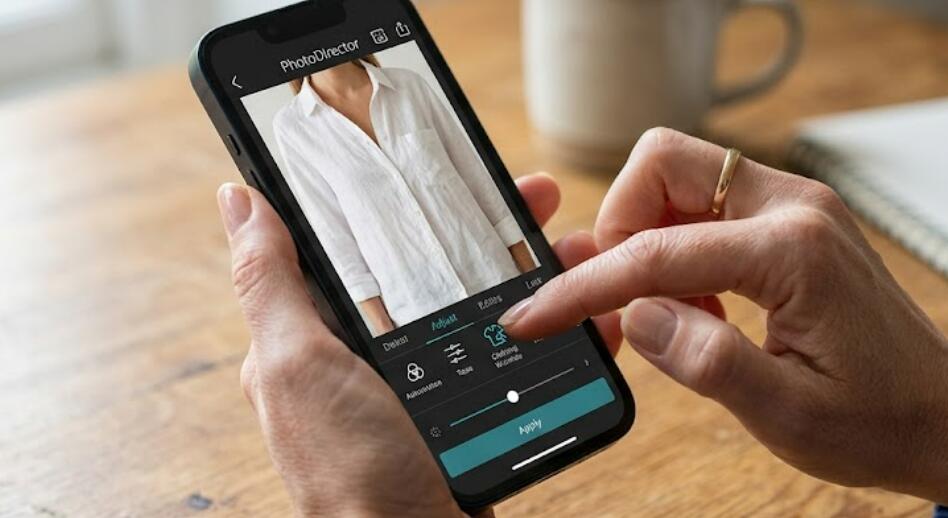
- Read also: Best Android app to remove wrinkles from clothes
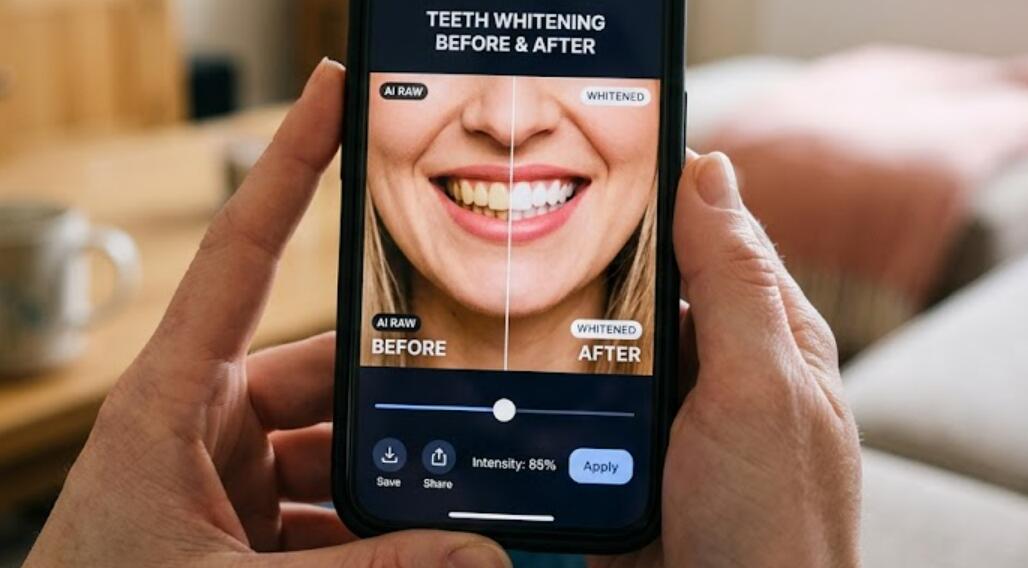
- How to get rid of yellow teeth in photos?
- 6 best free body slim photo editor apps
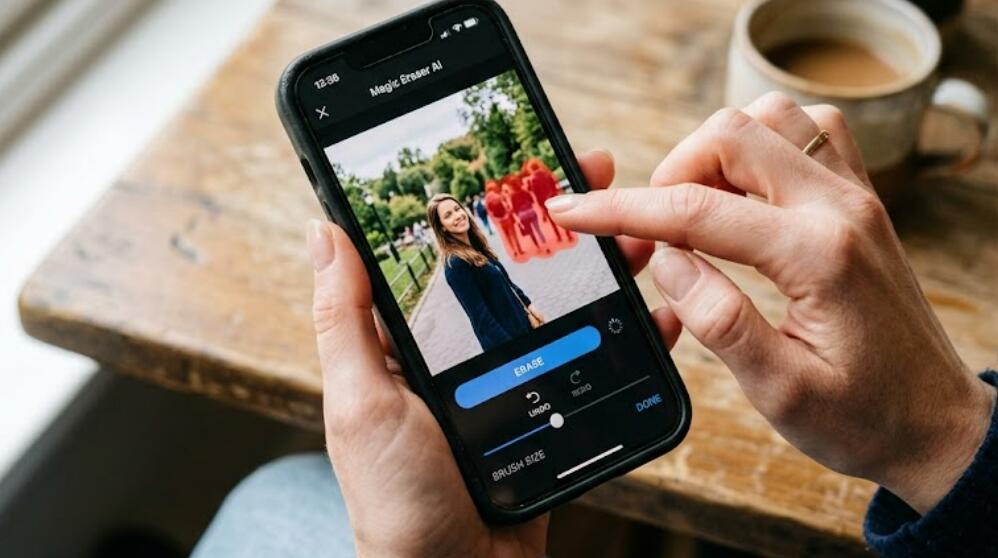
- How to take someone out of a picture?
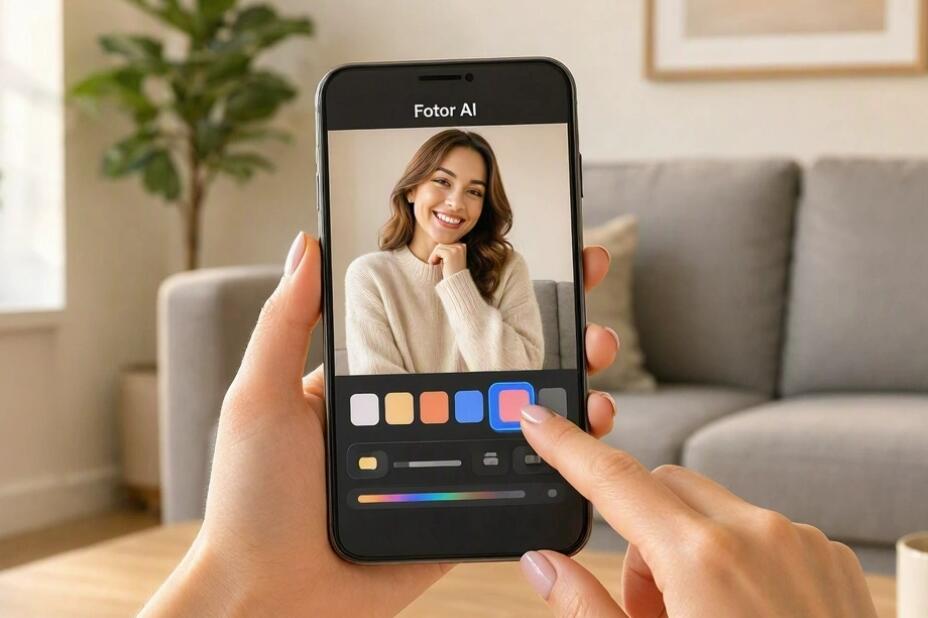
In this guide, we'll explain how to change clothes' color in photos directly on your phone using Fotor as an example. You'll learn how to prepare your image, select the clothing area, describe your desired color, and refine the result. We'll also share practical prompt-writing tips, common troubleshooting advice, and techniques for achieving natural-looking edits without changing the rest of your photo.
How to Change Clothes' Color in Photos Using Fotor
Fotor offers AI-powered photo editing tools that can help modify clothing colors. The exact interface and available features may vary depending on your device, region, and subscription. Follow these general steps using the current mobile app or mobile website.
- Open Fotor on your phone through its official app or mobile website. Sign in if required.
- Upload the photo you want to edit. Choose a clear, well-lit image in which the clothing is easy to distinguish from the background.
- Find an AI editing feature that supports image modification, object replacement, or localized editing. If available, select a brush or selection tool to mark the clothing area.
- Select the garment you want to recolor, such as a shirt, dress, jacket, or pair of trousers. Avoid including skin, hair, accessories, or background objects.
- Enter a precise prompt, such as "Change the red dress to emerald green while preserving its fabric texture, original folds, shadows, and lighting. Do not change the person's face or background."
- Generate the edited result and inspect the clothing edges, seams, buttons, and shadows. If the color spills into surrounding areas, refine the selection or simplify the prompt.
- Compare the edited image with the original, make any additional adjustments, and download the final photo using the available export options.
If Fotor's current version does not offer a dedicated clothing recoloring feature, try a compatible AI editing function that accepts localized instructions. Confirm feature availability before starting.
Choose the Right Photo for Better Results
The quality of your original image significantly affects the final result. Select a photo with sufficient resolution, even lighting, and a clear distinction between the garment and its surroundings. Clothing with visible folds, stitching, and texture gives AI useful visual information to preserve during recoloring.
Avoid images with heavy motion blur, extreme shadows, or clothing that blends into the background. If the garment is partially covered by hair, hands, or other objects, check those areas carefully after editing to ensure the AI has not changed them accidentally.
Write Effective AI Prompts for Clothing Recoloring
A specific prompt is usually more effective than simply asking AI to change a garment's color. Clearly identify the clothing item, the target color, and the details that must remain unchanged.
- For a natural look: "Change the blue shirt to soft beige, preserving the original fabric texture, folds, highlights, and shadows."
- For a bold transformation: "Recolor the denim jacket to deep burgundy while keeping its stitching, buttons, seams, and natural denim texture intact."
- For a pastel aesthetic: "Change the black sweater to pastel lavender, maintaining realistic lighting and all original garment details."
- For precise editing: "Modify only the trousers to charcoal gray. Keep the person's skin, shoes, accessories, and background unchanged."
When the first result is unsatisfactory, change one instruction at a time. Specify a darker shade or reinforce the instruction to preserve fabric texture instead of rewriting the entire prompt.
Preserve Fabric Texture and Realistic Lighting
One common challenge in AI recoloring is that clothing can look flat or artificial when its original shadows and highlights disappear. A convincing edit changes the garment's color while retaining its three-dimensional appearance.
Include phrases such as "preserve natural shadows," "retain fabric folds," and "maintain realistic material texture" in your prompt. Different fabrics also respond differently to color changes. Denim should retain its woven appearance, silk should preserve its characteristic sheen, and cotton should maintain its softer texture. Review these details at full resolution before exporting.
Explore Good AI Apps for Changing Clothes' Color in a Photo
Fotor is one option, but the best app to change the color of clothes in photos depends on the type of editing you need. When comparing mobile photo editors, look for these features:
- Localized editing: The ability to select a specific garment without affecting nearby objects.
- Text-based AI editing: Support for describing the desired color and the details that should remain unchanged.
- Precise selection tools: Brushes, masks, or object-selection features for controlling the editing area.
- High-resolution export: The ability to save a clear image suitable for social media or personal projects.
- Transparent pricing: Clear information about credits, watermarks, subscriptions, and usage restrictions.
Before committing to a paid plan, test the tool with a sample photo and check whether its editing controls meet your needs.
Fix Common AI Clothing Editing Problems
If the result looks unnatural, start by checking the selected area. AI may recolor skin, jewelry, or the background when the selection extends beyond the garment. Use a more precise mask and explicitly state which parts of the image must remain unchanged.
If the new color looks too bright or dull, specify a more exact shade, such as navy blue, warm ivory, or muted sage green. If fabric details disappear, reinforce the instruction to preserve texture, seams, and lighting. Generate another version and compare it with the original before deciding which result looks most realistic.
Final Thoughts
Changing clothes' color in photos on your phone with AI is a convenient way to explore different styles without retaking pictures or manually editing every detail. The quality of the selection and prompt plays a major role in achieving a convincing transformation.
For the best results, start with a clear image, make one targeted change at a time, and preserve the garment's original texture and lighting. With a little experimentation, you can create natural-looking clothing color variations for fashion inspiration, social media, or personal projects, all from your phone.