Wanna make an AI cat cooking video? Here's the full guide
Welcome to Blackview (Well-known Chinese brand of rugged smartphones, AI smart glasses, and Android tablets) blog. Hope this guide has been helpful.
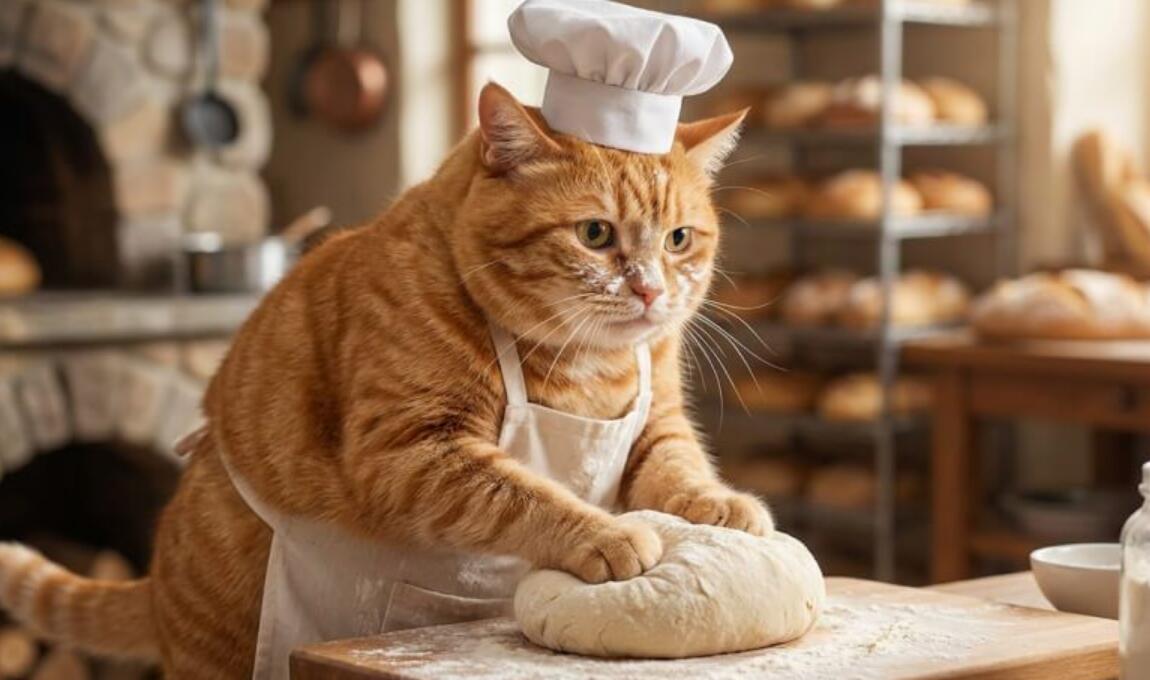
AI cat cooking videos are becoming a fun way to create entertaining content for TikTok, Instagram Reels, and YouTube Shorts. Imagine a fluffy orange cat wearing a tiny chef's hat, preparing pasta in a miniature kitchen, or baking chocolate cookies with adorable expressions. With AI-powered tools, you can bring these imaginative scenes to life without professional filming equipment, animation experience, or a real animal actor. All you need is a creative idea, a well-written prompt, and a smartphone.
- Read also: How to make an AI rat dancing video on your phone?
- How to make a baby dancing video with AI on your phone?
- Can I remove unwanted people in a video using AI?
- How to remove someone from a photo?
The best part is that you can create an AI cat cooking video directly on your phone. In this guide, we'll use PetChefAI, PhotoDirector, and YouCam Video as examples to show you how to make an AI cat cooking video on your phone. You'll also discover how to write effective AI cat cooking video prompts, maintain character consistency, improve video quality, and create engaging clips for social media. Whether you're a beginner or an experienced content creator, these practical steps will help you develop your ideas into polished videos.
How to Make an AI Cat Cooking Video on PetChefAI
PetChefAI is an option to explore for cat-themed creative content. Before starting, check its current mobile features to confirm whether it supports direct AI video generation or requires images to be animated with another tool.
- Open the official PetChefAI website on your smartphone or launch its mobile app if available.
- Sign in or create an account if the service requires one.
- Find the relevant AI creation feature, such as a cat generator, cooking template, or video generator.
- Choose a cooking concept, such as a cat making pancakes, preparing sushi, or baking cookies.
- Enter a detailed prompt describing the cat's appearance, clothing, kitchen setting, cooking action, lighting, and visual style.
- Generate the content and review the result. If the action looks unnatural, simplify the prompt and try again.
- Export the finished video if video generation and downloading are supported. Otherwise, save the image and use a compatible image-to-video tool.
For better results, begin with a single cooking action instead of asking the cat to complete an entire recipe in one scene. This makes the intended movement easier for an AI model to interpret.
How to Make an AI Cat Cooking Video on PhotoDirector
PhotoDirector is useful for creating and refining visual assets. Depending on your version and subscription, its available AI tools may include image generation, image editing, or animation-related features.
- Download the official PhotoDirector app from your phone's app store and open the editing workspace.
- Find an AI image-generation feature or another suitable tool for creating a cat cooking scene.
- Enter a prompt such as: "A fluffy orange tabby wearing a white chef's hat and blue apron, preparing fresh pasta in a cozy Italian kitchen, realistic fur, warm cinematic lighting."
- Generate the image and adjust the composition, background, colors, and character details using the available editing tools.
- If your version supports image-to-video generation or animation, select the image and describe a simple movement, such as stirring a pot or turning toward the camera.
- Preview the result, make any necessary adjustments, and export the content in a supported format.
PhotoDirector is particularly useful when you want to establish your cat's appearance before creating a video. If your version only produces still images, you can animate the finished image using another compatible mobile video tool.
How to Make an AI Cat Cooking Video on YouCam Video
YouCam Video is another tool worth exploring for AI-assisted video creation and enhancement. Its available features may vary by platform and version, so check whether it supports text-to-video generation, image animation, or only video editing.
- Install the official YouCam Video app if available for your device, then open its editing interface.
- Explore the AI tools and identify the features suitable for your project.
- Prepare a source image of your cat chef, either by importing an existing image or creating one with an AI image generator.
- If text-guided animation is supported, describe the desired movement. For example, ask the cat to stir pancake batter while standing beside a small stove.
- Preview the animation and use the available editing features to adjust the appearance, framing, or effects.
- Export the finished clip using a suitable resolution and aspect ratio for your target social media platform.
If YouCam Video does not support direct AI video generation in your version, create the initial footage with a compatible generator and use YouCam Video for any supported finishing touches.
How to Write Effective AI Cat Cooking Video Prompts
A good prompt helps an AI tool understand exactly what you want to create. Instead of writing "make a cat cooking," describe the character, cooking action, kitchen environment, camera angle, lighting, and visual style. Specific instructions make it easier to produce a coherent scene.
Use a Simple Prompt Formula
Build your prompt around six essential elements:
- Character: Describe the cat's fur color, breed, size, facial expression, and outfit.
- Cooking action: Specify one clear action, such as kneading dough, stirring soup, or flipping pancakes.
- Ingredients and props: Include the food, utensils, cookware, and other objects needed for the scene.
- Environment: Describe the kitchen, background, lighting, and atmosphere.
- Visual style: Choose photorealistic, cinematic, cute 3D animation, or another consistent aesthetic.
- Camera and movement: Explain the framing, camera angle, and motion you want to see.
Use this reusable template:
"A \(cat description\) wearing \(outfit\) is \(specific cooking action\) in \(kitchen setting\). \(Ingredients and props\) are visible. The scene features \(lighting and visual style\), \(camera angle\), and \(desired movement\). Keep the cat's appearance consistent and make the action natural."
Ready-to-Use AI Cat Cooking Video Prompts
Fluffy Cat Making Pancakes
"A fluffy orange tabby wearing a tiny white chef's hat and blue apron stands at a kitchen counter, gently whisking pancake batter in a ceramic bowl. A small frying pan sits on the stove, with fresh strawberries and blueberries arranged nearby. Warm morning sunlight streams through the window. Photorealistic fur, charming facial expressions, cozy home kitchen, medium shot, subtle natural movements, cinematic lighting, vertical 9:16 composition."
Kitten Running a Miniature Sushi Restaurant
"An adorable cream-colored kitten wearing a black chef's uniform prepares sushi at a miniature Japanese restaurant counter. The kitten carefully places a slice of salmon on a rice roll using tiny utensils. Fresh ingredients are neatly arranged on a wooden board. Soft lantern lighting, detailed food textures, cinematic close-up, whimsical realism, smooth paw movements, consistent character design, vertical video."
Black Cat Baking Chocolate Cookies
"A sleek black cat wearing a flour-dusted apron rolls cookie dough on a marble countertop in a rustic bakery. Chocolate chips and a wooden rolling pin sit nearby. The cat gently presses a cookie cutter into the dough, then looks proudly toward the camera. Golden afternoon light, realistic fur, warm color grading, shallow depth of field, charming cinematic style."
AI Cat Chef Making Spaghetti
"A chubby orange tabby chef in a white jacket and red neckerchief stands in a traditional Italian kitchen, stirring spaghetti in a large pot and adding tomato sauce. Steam rises naturally from the pot. Copper pans hang on the wall, and fresh basil rests on the counter. Detailed food textures, expressive eyes, medium camera shot, realistic lighting, smooth movement, consistent character appearance."
Practical Tips for Improving Your Prompts
- Focus on one primary action. Avoid asking the cat to chop vegetables, stir soup, flip pancakes, and serve dinner in a single generation.
- Describe the paws clearly. Request natural feline anatomy and simple interactions with utensils to reduce visual inconsistencies.
- Maintain character consistency. Repeat the same fur color, eye color, clothing, and distinctive accessories in every scene.
- Choose camera angles carefully. Close-ups work well for food preparation, while medium shots show the cat and kitchen together.
- Specify the aspect ratio. Vertical 9:16 is suitable for most short-form social media videos, while 16:9 works well for landscape content.
- Avoid conflicting instructions. A clear visual direction is generally more useful than a long list of unrelated adjectives.
- Refine the prompt gradually. Change one element at a time so you can identify which adjustments improve the output.
Build a Short Story Around the Recipe
A great AI cat cooking video needs more than an attractive character. It also needs a simple story that keeps viewers interested. Start with the cat gathering ingredients, show the main cooking action, and finish with the completed dish. For example, a kitten might struggle to mix cookie dough before proudly presenting a tray of golden cookies.
Plan three or four short scenes before generating your clips. This approach creates a natural beginning, middle, and ending while making it easier to control the action in each generation. A satisfying final shot, such as the cat presenting a finished meal, can make the video more memorable.
Maintain Visual Consistency Between Scenes
Character consistency is important when combining multiple AI-generated clips. Use a reference image whenever your tool supports one, and repeat the same detailed character description in every prompt. Keep the cat's clothing, fur pattern, kitchen layout, lighting, and color palette consistent.
Generate several versions of each scene and compare them before editing. If your tool supports reference images or seed settings, experiment with those features to reduce unwanted changes in the character's appearance. Small differences between clips are sometimes unavoidable, so prioritize the most noticeable details.
Polish Your Video With Editing and Sound
Once your clips are ready, arrange them in a mobile video editor. Trim awkward transitions, remove scenes with obvious visual errors, and maintain a lively pace. Add suitable background music, gentle kitchen ambience, or synchronized sound effects such as chopping, sizzling, and stirring.
Captions can help communicate a joke or recipe step, especially when viewers watch without sound. Keep text readable and avoid covering the cat's face or the food. Choose music and sound effects that you have permission to use, particularly if you plan to publish commercial content.
Optimize Your Video for Social Media
For short-form platforms, start with an immediately recognizable visual, such as a cat wearing an oversized chef's hat or presenting an enormous pancake. Keep the main subject clearly visible, and avoid placing important details near interface overlays. Export at the highest practical quality supported by your editing app.
Before publishing, watch the entire video to check for unnatural movement, inconsistent character details, and abrupt transitions. Write a concise caption that encourages interaction, such as "Would you try this cat chef's special?" A clear concept, engaging opening, and satisfying ending can help make your content more appealing to viewers.
Common Mistakes to Avoid
Even a promising concept can produce disappointing results if the workflow is too complicated. Watch out for these common problems:
- Overloaded prompts: Too many simultaneous actions can produce confusing movements and inconsistent objects.
- Changing cat designs: Different fur patterns or outfits can make the character look like a different cat in each scene.
- Unnatural cooking interactions: Paws may pass through utensils, ingredients may disappear, or food may change shape between frames.
- Excessive visual effects: Too many filters, stickers, and transitions can distract from the cooking story.
- Ignoring export limitations: Check watermark policies, resolution limits, subscription requirements, and commercial-use terms before publishing.
The best solution is to keep each scene simple, generate alternatives when necessary, and prioritize coherent movement over unnecessary visual complexity.
Final Thoughts
Making an AI cat cooking video on your phone is an accessible way to explore AI-generated storytelling. PetChefAI is worth investigating for cat-focused creative workflows, PhotoDirector can help you create and refine source images, and YouCam Video may be useful for supported video editing and enhancement features. The right choice depends on whether you need to generate a character, animate a scene, or polish an existing clip. Always check the current capabilities of each app before starting.
Most importantly, treat prompt writing as a creative process. Begin with a charming cat, give it one clear cooking task, establish a consistent visual style, and refine the result through several iterations. Once you have mastered a simple scene, experiment with different recipes, kitchen settings, camera angles, and humorous storylines. With careful planning and a little creativity, you can turn an ordinary idea into a delightful AI cat cooking video that viewers will want to watch, share, and remember.