The 6 best AI apps to change the background in photos & How to change
Welcome to Blackview (Well-known brand of AI smart glasses, rugged smartphones and Android tablets) blog. Hope this guide has been helpful.
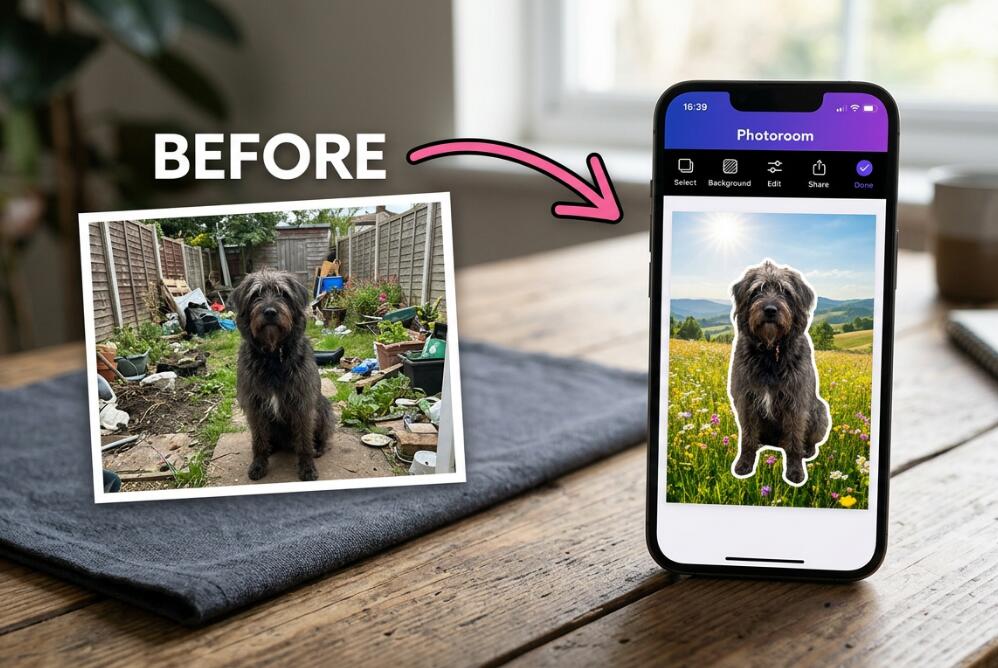
Changing the background of a photo is one of the easiest ways to transform an ordinary image into something more professional, attractive, and visually engaging. Whether you want to create a clean product photograph, replace a distracting location with a beautiful landscape, or give a portrait a completely different atmosphere, AI-powered photo editing apps can help you achieve impressive results without advanced editing skills. Instead of manually selecting every edge and removing unwanted objects, these tools use artificial intelligence to identify the main subject and separate it from the original background.
- Read also: Best apps to remove wrinkles from clothes in photos
- 6 best body slim photo editor apps to make body slim in a picture
- How to remove a person from a photo?
- How to add someone to a photo on your phone?
- 5 best AI apps for whitening yellow teeth in a photo
With so many photo editing applications available, choosing the right one can be challenging. Some specialize in realistic background replacement, while others offer creative AI-generated scenes, professional design templates, or convenient batch editing. In this guide, we explore six of the best AI apps for changing photo backgrounds, explain their standout features, and walk you through the process of replacing a background using one of these applications. Whether you are a beginner, content creator, photographer, or online seller, you will find an option that suits your needs.
6 Best AI Apps to Change Photo Backgrounds
Here are six applications worth considering for AI-powered background removal and replacement:
- Photoroom
- Adobe Express
- Canva
- Pixelcut
- Picsart
- Clipdrop
1. Photoroom – Best for Professional Product Photos
Photoroom is one of the most convenient AI photo editing applications for removing and replacing backgrounds. It is particularly useful for online sellers, small businesses, and content creators who need attractive product images without investing in expensive photography equipment. Its AI technology automatically identifies the main subject, removes the original background, and allows users to introduce a completely different setting.
One of its biggest advantages is its AI Background feature, which can generate new environments based on text descriptions. For example, you can place a cosmetic product against a luxurious marble surface, position a handbag in a minimalist studio, or create a natural outdoor setting for fashion photography. The application also offers background colors, shadows, templates, and product photography tools.
Photoroom supports mobile and web-based editing, making it accessible across different workflows. Its batch editing capabilities are especially helpful for businesses managing large product catalogs. Although some advanced features and higher-quality exports require a paid subscription, its basic editing experience makes it a strong choice for everyday background replacement.
Best for: E-commerce photography, product images, online stores, and professional-looking promotional content.
2. Adobe Express – Best for Quick and Simple Editing
Adobe Express is an excellent option for people who want to change photo backgrounds without dealing with complicated editing software. Its background removal tool uses AI to identify the primary subject and automatically separate it from the surrounding environment. Once the original background has been removed, users can add a solid color, upload another image, or explore available design elements.
What makes Adobe Express particularly appealing is its combination of photo editing and graphic design features. You can transform an edited photograph into a social media post, advertisement, presentation, poster, or promotional graphic without switching between multiple applications.
The interface is beginner-friendly, and its editing workflow is relatively straightforward. Adobe also provides options for downloading transparent PNG images, which is useful when you want to reuse an isolated subject in other creative projects. Some features and usage limits depend on the selected plan, so check the current terms before committing to a subscription.
Best for: Beginners, social media graphics, marketing materials, and quick background changes.
3. Canva – Best for Creative Designs and Templates
Canva is widely known as a graphic design platform, but it also provides useful tools for AI-assisted photo editing. Its Background Remover makes it possible to isolate a person, product, or other subject and place it into a new visual composition. Users can then combine the edited photograph with typography, illustrations, shapes, and professionally designed templates.
Canva is particularly useful when changing a background is only one part of a larger creative project. For instance, you can remove the background from a portrait, position the subject against a colorful design, and add text to create an eye-catching promotional banner. Its AI-powered creative features also help users explore different visual ideas.
Another advantage is its cross-platform accessibility. Projects can be edited through a web browser or mobile application, making it convenient for people who work across multiple devices. However, the Background Remover is included with eligible paid plans, and some AI features have usage limits. These restrictions are worth considering if you need to edit photographs regularly.
Best for: Posters, presentations, social media content, advertisements, and branded designs.
4. Pixelcut – Best for Mobile Product Photography
Pixelcut is an AI-powered photo editing application designed to make professional-looking visual content more accessible. Its background removal feature can automatically separate products, portraits, and other subjects from their original surroundings. Users can then replace the background with a different color or an AI-generated scene.
One of its most useful features is its focus on product photography. Instead of simply removing unwanted backgrounds, Pixelcut provides additional tools for creating polished product images, including AI backgrounds, realistic shadows, image enhancement, and resizing. These capabilities make it particularly useful for online retailers who want consistent photographs for product listings.
Pixelcut also includes batch editing features, allowing users to apply selected adjustments to multiple images. This can significantly reduce repetitive work when preparing a large collection of photographs. It is available on mobile devices and through the web, with free tools and additional paid capabilities.
Best for: Online sellers, product catalogs, mobile editing, and commercial photography.
5. Picsart – Best for Creative and Artistic Backgrounds
Picsart is a versatile photo editing application that combines traditional editing tools with AI-powered creative features. Its AI Background functionality allows users to remove an existing background and generate a replacement using a written description. This makes it particularly appealing to people who want something more imaginative than a simple color change.
For example, you could describe a tropical beach, a futuristic city, a flower-filled garden, or a stylish indoor photography studio. The AI then generates background options based on your prompt, giving you different creative possibilities without requiring manual compositing.
Beyond background replacement, Picsart offers filters, stickers, retouching tools, artistic effects, and other design features. Its combination of editing and creative generation makes it suitable for social media creators who frequently experiment with different visual styles. AI Background generations use credits, and availability may vary depending on the application version and subscription.
Best for: Creative portraits, social media photography, artistic compositions, and experimental edits.
6. Clipdrop – Best for Fast AI Background Replacement
Clipdrop is another useful AI editing platform for removing and replacing photo backgrounds. It provides dedicated tools that automatically isolate the main subject, making it possible to create clean cutouts without manually tracing complicated edges.
Its Replace Background tool is particularly interesting because users can describe a new environment and let AI generate a suitable setting. This approach works well for creative product photography, portraits, and promotional images. For example, a simple photograph of a pair of shoes can be transformed into a more visually appealing product scene with a descriptive background prompt.
Clipdrop also includes other image editing capabilities, such as image upscaling, cleanup, and relighting. These additional tools make it useful for people who want to improve several aspects of a photograph within one editing workflow. Its availability and advanced feature access may vary, so review the current service options before choosing a plan.
Best for: Quick background removal, AI-generated environments, and additional image enhancement.

How to Change a Photo Background Using AI
Although the exact interface varies between applications, the general background replacement process is similar. For this example, we will use Photoroom because its dedicated background editing tools provide a straightforward workflow for beginners.
Follow these steps to replace the background of your photograph:
- Step 1: Open Photoroom. Install the application on your smartphone or access its web version. Open the editor and select the option to start a new design or edit a photograph.
- Step 2: Upload your photograph. Choose an image from your device. For better results, use a clear photograph in which the main subject is easily distinguishable from the background.
- Step 3: Remove the original background. Allow the AI background removal tool to process your photograph. The application will automatically detect the main subject and separate it from the surrounding environment.
- Step 4: Choose a replacement background. Explore the available background options. You can select a solid color, choose a ready-made design, upload your own image, or use an AI-generated background if the feature is available in your plan.
- Step 5: Describe your preferred background. If you use AI generation, enter a detailed prompt. For example, try: "A bright minimalist photography studio with soft natural window lighting, neutral beige walls, and a subtle shadow on the floor."
- Step 6: Adjust the composition. Check the subject's position, scale, and alignment. Adjust the background so that the lighting, perspective, and proportions look natural.
- Step 7: Refine the final image. Inspect the edges around hair, clothing, and small objects. Make additional adjustments if necessary, and check whether the shadows match the new environment.
- Step 8: Export your photograph. Once satisfied with the result, select the appropriate download or export option. Choose a suitable image format and resolution for your intended use.
These steps can also be adapted to other applications, although individual tools and menu names may differ. Always inspect the final image before publishing or sharing it.
What Makes a Good AI Background Changer?
Not every background editing application produces the same results. Before choosing one, consider several important factors:
- Accurate subject detection: A good tool should identify the main subject without removing important details, particularly around hair, transparent objects, and complicated outlines.
- Realistic background replacement: The new environment should complement the original photograph rather than make the subject look artificially pasted into the scene.
- Editing flexibility: Look for options to adjust colors, reposition subjects, refine edges, and add shadows.
- Export quality: Check whether the application supports high-resolution downloads and transparent PNG files.
- Pricing and accessibility: Compare free features, subscription costs, AI credits, and export restrictions before making a decision.
Tips for Getting Natural-Looking Results
Even advanced AI tools cannot guarantee a perfect result with every photograph. The quality of the original image and your choice of replacement background both influence the final appearance.
- Use photographs with good lighting and clearly defined subjects.
- Avoid images where the subject blends into the original background.
- Choose replacement backgrounds with lighting that matches the subject.
- Pay attention to shadows, reflections, and perspective.
- Avoid overly complicated backgrounds that compete with the main subject.
- Zoom in to inspect edges and small details before exporting.
For commercial photography, consistency is especially important. If you are editing several product images, try to maintain similar lighting, background colors, and composition across the entire collection.
Common Mistakes to Avoid When Changing Photo Backgrounds
One common mistake is choosing a background simply because it looks attractive, without considering whether it suits the original subject. A brightly lit portrait placed into a dark environment, for example, may look unnatural unless its lighting is adjusted accordingly.
Another issue is neglecting fine details. AI tools sometimes leave small traces of the original background around hair, clothing, or transparent objects. Overlooking these imperfections can make an otherwise impressive edit appear unprofessional. It is also important not to stretch or distort the subject when adjusting its position. Maintaining realistic proportions helps preserve the photograph's original quality.
FAQ: Changing Photo Backgrounds With AI
Which AI app is best for changing photo backgrounds?
Photoroom is a strong choice for product photography and professional-looking background replacement. Adobe Express is suitable for quick edits, Canva works well for graphic design projects, and Picsart is useful for creative AI-generated backgrounds. The best option ultimately depends on your editing requirements.
Can I change a photo background for free?
Yes. Several applications offer free background editing tools or limited free usage. Pixelcut and Adobe Express are worth exploring, while other platforms may restrict certain features, resolutions, or AI generations to paid plans. Always check the current export conditions.
Can AI change a photo background without affecting the person?
AI background replacement tools are designed to isolate the main subject while changing the surrounding environment. However, small details may occasionally be altered or removed. Review the edges and facial details carefully before saving the final image.
Which image format should I use after removing a background?
PNG is generally the preferred format when you need to preserve a transparent background. JPG is suitable for standard photographs with a solid background, while WebP can be useful for web-based applications where supported.
Are AI-generated photo backgrounds realistic?
They can look highly realistic, particularly when the prompt is detailed and the original photograph has clear lighting and perspective. Nevertheless, some results may contain inconsistent shadows, unusual textures, or visual distortions. Reviewing the finished composition is essential.
Final Thoughts
AI-powered background editing has made professional-looking photo transformations more accessible than ever. Instead of spending hours manually cutting out subjects and adjusting layers, you can use intelligent editing tools to remove unwanted backgrounds, generate new environments, and improve the overall appearance of your photographs in just a few steps. Photoroom, Adobe Express, Canva, Pixelcut, Picsart, and Clipdrop each offer different advantages, making it easier to find an application that matches your creative goals and budget.
Ultimately, the best AI background changer is the one that delivers the right balance of image quality, convenience, creative flexibility, and affordability. If you regularly create product photographs, Photoroom or Pixelcut may be worth exploring. For graphic design projects, Adobe Express and Canva are excellent options, while Picsart and Clipdrop provide additional creative possibilities. Experiment with different tools, pay attention to the details, and choose backgrounds that complement your subjects. With the right application and a little practice, transforming an ordinary photograph into a polished, visually appealing image can become a quick and enjoyable process.