How can I use a thermal imaging phone to quickly identify high-temperature areas caused by poor heat dissipation in my router?
Welcome to Blackview (World's well-known brand of rugged phone and tablet) blog. Hope the guide helps.
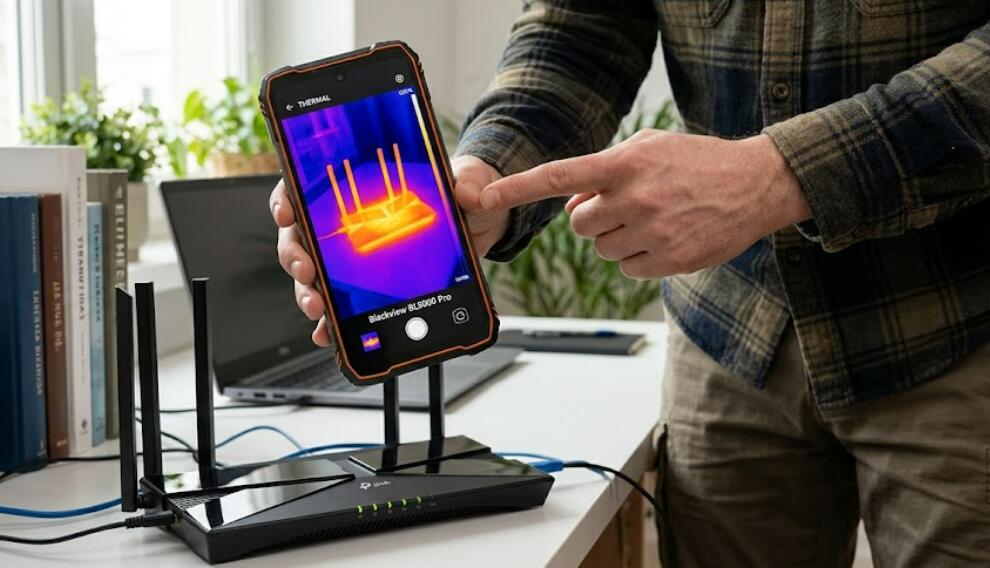
Modern Wi-Fi routers operate continuously, often handling multiple connected devices, high-speed data transfers, and demanding applications such as online gaming and 4K video streaming. As a result, routers naturally generate heat during operation. While a moderate amount of warmth is normal, poor ventilation or ineffective heat dissipation can cause certain internal components to reach excessively high temperatures. Over time, overheating may reduce wireless performance, cause unstable connections, shorten hardware lifespan, or even lead to unexpected system restarts. Fortunately, thermal imaging smartphones provide a fast and convenient way to visualize temperature distribution without opening the device.
- Read also: How to use thermal imaging to quickly locate the heat source of an overheated TV box?
- How to use thermal imaging to check if the smart lights are overheating?
Unlike traditional infrared thermometers that measure only a single point, a thermal imaging smartphone displays a complete heat map of the router's surface. This allows users to quickly locate abnormal hot spots, compare temperatures across different areas, and determine whether airflow or cooling needs improvement. Whether you are troubleshooting network instability or performing preventive maintenance, thermal imaging can significantly simplify the inspection process while avoiding unnecessary disassembly.
The ability to identify overheating early is especially valuable for home users, IT technicians, and small businesses. By combining thermal images with simple environmental observations, users can determine whether high temperatures are caused by blocked ventilation, excessive workload, poor installation, or external heat sources. The following guide explains how to use a thermal imaging smartphone effectively and interpret the results correctly.
Why Routers Develop High-Temperature Areas
Routers contain processors, memory chips, wireless radios, and power management components that continuously generate heat during normal operation. If this heat cannot escape efficiently, localized hot spots begin to form.
Common Causes of Poor Heat Dissipation
Several factors may contribute to excessive router temperatures.
- Blocked ventilation openings due to dust accumulation.
- Placement inside enclosed cabinets or tight spaces.
- Continuous heavy network traffic.
- High ambient room temperatures.
- Faulty cooling design or aging hardware.
- Nearby electronic devices producing additional heat.
How to Inspect a Router Using a Thermal Imaging Smartphone
Follow these steps to locate overheating areas safely and accurately.
Step-by-Step Inspection Procedure
The inspection process is straightforward and requires only a few minutes.
- Power on the router and allow it to operate normally for at least 20 to 30 minutes.
- Open the thermal imaging application on your smartphone.
- Stand approximately 30 to 60 centimeters from the router.
- Scan the top, front, rear, and side surfaces slowly.
- Observe the thermal image for unusually bright or hot regions.
- Capture thermal images from multiple viewing angles.
- Compare temperatures across different sections of the router.
- Pay special attention to areas near ventilation slots and power connectors.
- Record the highest temperature displayed for future comparison.
How to Interpret Thermal Images
Not every warm area indicates a problem. Understanding normal heat patterns helps distinguish expected operating temperatures from potential cooling issues.
Identifying Abnormal Hot Spots
Look for concentrated regions that are significantly hotter than surrounding areas rather than evenly distributed warmth across the entire device.
- Large temperature differences may indicate restricted airflow.
- Extremely hot processor locations could suggest excessive workload.
- Heat concentrated near power circuits may indicate power-related stress.
- Uneven heating around ventilation openings may reveal blocked airflow.
Improving Router Cooling Performance
After identifying overheating areas, several simple improvements can reduce operating temperatures and enhance long-term reliability.
Recommended Cooling Solutions
Most overheating problems can be reduced through better placement and regular maintenance.
- Place the router in an open, well-ventilated location.
- Keep ventilation holes free of dust.
- Avoid stacking other electronics on top of the router.
- Keep the router away from direct sunlight.
- Reduce unnecessary continuous network load when possible.
- Consider using a small USB cooling fan for improved airflow.
Benefits of Using Thermal Imaging for Router Maintenance
Thermal imaging provides several advantages over traditional troubleshooting methods because it allows users to observe temperature differences visually and instantly.
Key Advantages
Regular thermal inspections help detect potential issues before they become serious hardware failures.
- Quickly locate overheating components without opening the router.
- Monitor temperature changes after improving ventilation.
- Prevent unexpected performance degradation caused by overheating.
- Support preventive maintenance and hardware health checks.
- Reduce troubleshooting time during network problems.
Using a thermal imaging phone is an efficient and non-invasive way to discover high-temperature areas caused by poor router heat dissipation. By visualizing surface temperatures in real time, users can quickly identify abnormal hot spots, evaluate airflow effectiveness, and determine whether cooling improvements are necessary. Regular inspections also make it easier to monitor temperature trends and verify that maintenance efforts have been successful.
As home and office networks continue to support more connected devices and higher data demands, maintaining proper router operating temperatures becomes increasingly important. With a systematic inspection process, accurate thermal images, and appropriate cooling measures, users can improve router stability, extend hardware lifespan, and ensure reliable wireless performance for everyday use.