How to connect a keyboard to my smart TV?
Welcome to Blackview (Which offers rugged phone with projector, best 4K projector for home, and more) blog. Hope this "keyboard to smart TV" related guide helps.
Connecting a keyboard to a smart TV is one of the easiest ways to improve your overall user experience. While smart TVs are designed to be operated with a remote control, entering text using directional buttons can be slow and frustrating. Whether you are searching for movies, logging into streaming services, browsing the web, or typing passwords, a physical keyboard makes these tasks much faster and more convenient. Fortunately, most modern smart TVs support either USB or Bluetooth keyboards, making the setup process simple even for beginners.
- Read also: How to connect laptop to TV with HDMI?
- How to hook phone to TV with HDMI?
- How to connect phone to TV with USB without HDMI?
Before connecting a keyboard, it is important to check whether your smart TV supports external input devices. Most Android TV, Google TV, Samsung, LG, Sony, TCL, Hisense, and other popular smart TV brands are compatible with USB or Bluetooth keyboards. Updating your TV's software to the latest version is also recommended, as newer firmware often improves compatibility and stability. Once everything is ready, you can choose the connection method that best matches your keyboard.
The exact setup process depends on whether you are using a wired USB keyboard or a wireless Bluetooth keyboard. Both options are easy to configure and require only a few steps. After the keyboard is connected, it can usually be used immediately for typing, navigating menus, searching apps, and entering account information without additional software installation.
Connect a USB Keyboard to a Smart TV
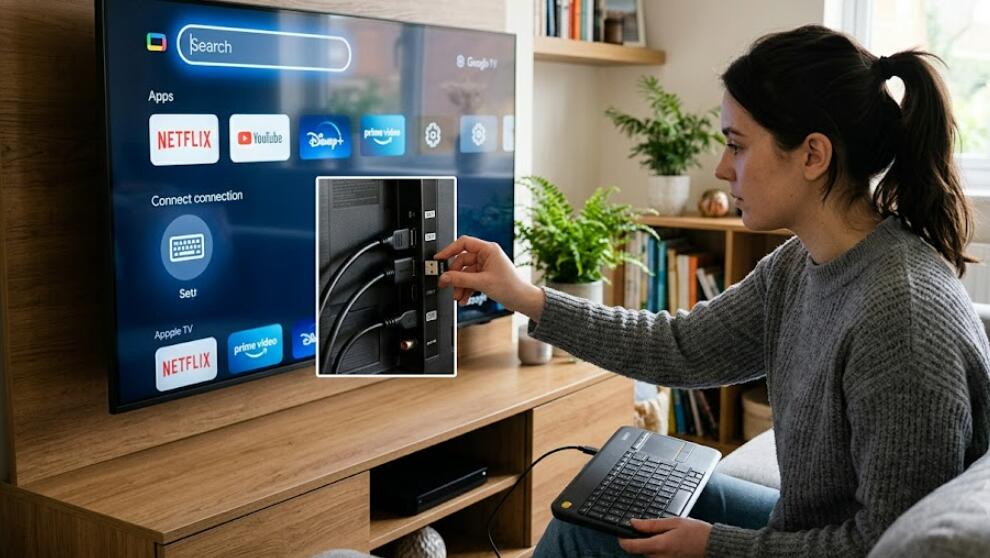
A wired USB keyboard is the simplest option because it does not require pairing or batteries. Most smart TVs automatically recognize USB keyboards when they are plugged into an available USB port.
- Turn on your smart TV.
- Locate an available USB port on the back or side of the TV.
- Insert the USB connector from the keyboard into the USB port.
- Wait a few seconds while the TV detects the keyboard.
- Open any search box or text field to test typing.
- Verify that the arrow keys, Enter key, and other basic functions work properly.
Connect a Bluetooth Keyboard to a Smart TV
Bluetooth keyboards provide greater flexibility because they eliminate cables and allow you to control the TV from a comfortable distance.
- Turn on your Bluetooth keyboard and enable pairing mode.
- Open the Settings menu on your smart TV.
- Select Bluetooth or Remote & Accessories, depending on your TV model.
- Choose the option to add or pair a new Bluetooth device.
- Select your keyboard when it appears in the available device list.
- Confirm the pairing request if prompted.
- Complete any verification code shown on the screen.
- Test the keyboard by opening a search field.
Check Keyboard Compatibility
Although many keyboards work immediately after connecting, compatibility may vary depending on the TV operating system and keyboard model.
Supported Keyboard Types
Most smart TVs support standard USB keyboards, Bluetooth keyboards, compact wireless keyboards with USB receivers, and multimedia keyboards. Basic typing functions usually work without additional drivers.
Shortcut Key Support
Some keyboards include multimedia shortcut keys for volume, playback, brightness, or application launching. Certain smart TVs recognize these shortcuts, while others only support basic typing and navigation keys.
Advantages of Using a Keyboard with a Smart TV
Adding a keyboard provides several practical benefits that improve both productivity and entertainment.
Faster Searching
Typing movie titles, YouTube videos, websites, and application names becomes much quicker than using a remote control.
Easy Password Entry
Entering long Wi-Fi passwords, streaming account credentials, and email addresses is significantly easier with a full keyboard.
Better Web Browsing
If your smart TV includes a web browser, a keyboard makes browsing websites feel much closer to using a computer.
Improved Productivity
Some users connect keyboards for cloud gaming, office applications, online education, or remote desktop access, making the smart TV more versatile.
Troubleshooting Connection Problems
If your keyboard is not working after connection, several common solutions can resolve the issue quickly.
- Restart both the smart TV and the keyboard.
- Replace the keyboard batteries if using Bluetooth.
- Reconnect the Bluetooth pairing.
- Try a different USB port for wired keyboards.
- Remove old paired Bluetooth devices if the limit has been reached.
- Update the smart TV software to the latest version.
- Confirm that the keyboard is compatible with your TV model.
Tips for the Best User Experience
Following a few simple recommendations can help you enjoy smoother keyboard performance on your smart TV.
Keep the Keyboard Charged
Recharge wireless keyboards regularly or replace batteries before they become weak to prevent unexpected disconnections.
Maintain Bluetooth Range
Keep the keyboard within the recommended Bluetooth range and avoid physical obstacles that may interfere with the signal.
Use a Keyboard with a Touchpad
Compact keyboards that include an integrated touchpad can replace both the remote control and a separate mouse, making navigation even more convenient.
Connecting a keyboard to a smart TV is a simple upgrade that greatly improves everyday usability. Whether you choose a wired USB keyboard or a wireless Bluetooth model, the installation process usually takes only a few minutes. Once connected, typing becomes faster, more accurate, and much more comfortable than using a traditional remote control.
By selecting a compatible keyboard, following the correct connection steps, and applying the troubleshooting tips provided above, you can enjoy a smoother smart TV experience for streaming, web browsing, gaming, and everyday navigation. A keyboard is a practical accessory that helps you get the most out of your smart TV while saving time and reducing frustration.