How to connect my smart TV to WiFi?
Welcome to Blackview (Which offers best 4K projector for home bedroom, rugged phone with projector built in, best all in one projector, and more) blog. Hope this guide helps.
Connecting your smart TV to WiFi is an essential step toward enjoying a convenient and entertaining home viewing experience. With a wireless internet connection, you can access popular streaming platforms, watch online videos, browse entertainment apps, and enjoy digital content without connecting additional devices. Whether you have recently purchased a smart TV or want to reconnect an existing television, the setup process is generally straightforward. Although menu layouts vary between manufacturers, most smart TVs follow similar steps to establish a reliable wireless connection.
- Read also: How to transmit cable TV wirelessly to another room?
- How to add apps to smart TV?
- How to hide and unhide your WiFi network?
- How to find & connect to a hidden WiFi SSID?
Before getting started, make sure your home WiFi network is working properly and that you know its network name (SSID) and password. Position your television within a reasonable distance of your wireless router to ensure a strong signal. Most modern smart TVs support wireless connections, allowing you to complete the setup using your remote control. Follow the steps below to connect your television to the internet.
- Step 1: Turn on your smart TV. Use your remote control to switch on the television and wait for the home screen to appear.
- Step 2: Open the Settings menu. Press the Settings or Menu button on your remote control.
- Step 3: Find Network Settings. Navigate to Network, Internet, Connection, or Network Settings, depending on your TV model.
- Step 4: Select Wireless or WiFi. Choose the wireless network connection option.
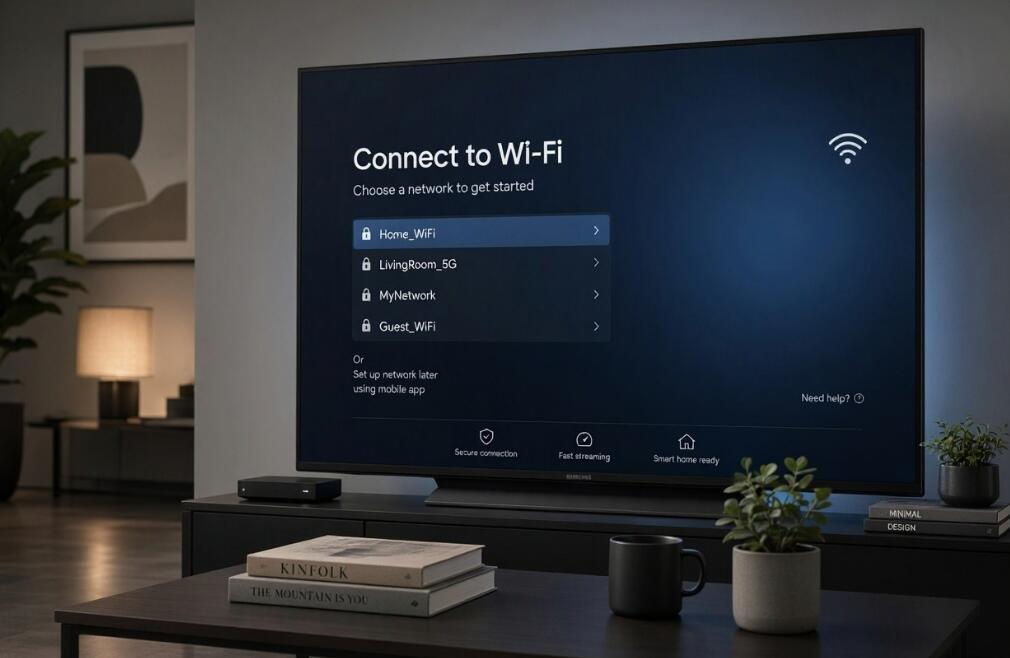
- Step 5: Choose your home WiFi network. Wait for available networks to appear and select your network name.
- Step 6: Enter your WiFi password. Use the on-screen keyboard to enter the correct password, paying attention to uppercase and lowercase letters.
- Step 7: Connect to the network. Select Connect, OK, or Done and wait for the television to establish the connection.
- Step 8: Confirm the connection. Look for a Connected message or WiFi symbol. Open a streaming application to check whether the internet is working.
Understanding Your Smart TV's WiFi Connection
A smart TV connects to the internet through a built-in wireless network adapter. This technology allows the television to communicate with your home router without requiring a physical internet cable. Once connected, your TV can access online services, download applications, receive software updates, and stream movies or television programs.
Most smart TVs support either 2.4 GHz or 5 GHz WiFi networks, although compatibility varies by model. A 2.4 GHz connection generally offers better coverage over longer distances and can pass through walls more effectively. Meanwhile, 5 GHz networks often provide faster speeds over shorter distances, making them suitable for high-definition and 4K streaming when the signal is strong.
How to Troubleshoot Smart TV WiFi Connection Problems
Sometimes, a smart TV may fail to connect to WiFi even when the correct password has been entered. Common causes include temporary network interruptions, weak wireless signals, incorrect settings, and router problems. Fortunately, several troubleshooting methods can help restore connectivity.
Restart Your Television and Router
Restarting both devices is one of the simplest ways to resolve temporary connection problems. Turn off your television and unplug it for approximately one minute. Disconnect your router from its power source, wait around 30 seconds, and reconnect it. Once the router has fully restarted, turn on your TV and try connecting again.
Check Your WiFi Password
An incorrect password is a common reason for unsuccessful wireless connections. Remember that WiFi passwords are case-sensitive, so even a small typing mistake can prevent your television from connecting. If necessary, forget the saved network on your TV and enter the password again.
Improve Your Wireless Signal
If your television is located far away from the router, the wireless signal may be too weak for a stable connection. Consider moving the router to a more central location, removing physical obstructions, or using a WiFi extender to improve coverage. Keeping electronic devices that may cause interference away from your router can also help.
Connecting Different Smart TV Brands to WiFi
Although the general connection process is similar, individual manufacturers use different operating systems and menu structures. Knowing where to find the network settings on your television can make setup faster and easier.
- Samsung Smart TVs: Open Settings, select General or Connection, and navigate to Network Settings. Choose Wireless, select your WiFi network, and enter the password.
- LG Smart TVs: Press the Settings button, open All Settings, select General, and find Network or WiFi Connection. Choose your wireless network and complete the connection.
- Sony Smart TVs: Open Settings, navigate to Network and Internet, enable WiFi if necessary, and select your home network. Enter the password when prompted.
- Hisense Smart TVs: Open Settings, select Network, and choose Wireless Connection. Find your WiFi network and enter the required credentials.
- TCL Smart TVs: Depending on whether your television uses Google TV or Roku TV, open Settings and navigate to Network or Network and Internet. Select WiFi and follow the on-screen instructions.
Always refer to your television's user manual if the menu options differ from these instructions. Software versions and regional models may use slightly different terminology.
Tips for Maintaining a Stable Smart TV Internet Connection
Establishing a WiFi connection is only the first step. Maintaining a stable network is equally important, particularly when streaming high-resolution content or using multiple online applications. A few practical adjustments can help reduce buffering, improve streaming quality, and prevent unexpected disconnections.
- Keep your router updated: Install available firmware updates to improve network performance, security, and compatibility.
- Choose the right WiFi band: Use 5 GHz for faster speeds when your television is close to the router, or 2.4 GHz when greater coverage is needed.
- Limit network congestion: Avoid downloading large files or running bandwidth-intensive activities on multiple devices while streaming.
- Update your smart TV software: Regular software updates can resolve connectivity bugs and improve application performance.
- Consider an Ethernet connection: If WiFi remains unreliable, connecting your television directly to the router with an Ethernet cable may provide a more consistent internet connection.
When to Contact Technical Support
If your smart TV continues to experience connection problems after trying the recommended troubleshooting methods, the issue may involve hardware compatibility, router configuration, or the television's wireless adapter. Before contacting technical support, check whether other devices can connect to the same WiFi network. If every device experiences problems, your internet service provider or router manufacturer may be able to help.
If other devices work normally but your television cannot detect any available wireless networks, the TV may require further technical inspection. You can also consult the manufacturer's support website for model-specific troubleshooting instructions. A factory reset may be another option, but it should generally be considered a last resort because it can erase saved network details, installed applications, and personalized settings.
Connecting your smart TV to WiFi is a relatively simple process that can unlock a wide range of online entertainment and convenient digital features. By accessing the network settings, selecting your home wireless network, and entering the correct password, you can usually complete the setup in just a few minutes. Understanding the differences between WiFi frequency bands and following the manufacturer's instructions can also help ensure a smooth installation.
Once your television is connected, remember to maintain your router, install software updates, and monitor your wireless signal to enjoy uninterrupted streaming. If connection problems occur, basic troubleshooting steps such as restarting devices, checking passwords, and improving router placement can often resolve them. With a properly configured internet connection, your smart TV can become a more versatile entertainment hub for your entire household.