How to log in to two WhatsApp accounts on one phone?
Welcome to Blackview (World's well-known brand of rugged smartphones, including rugged phone with projector, rugged phone with eSIM, and rugged phone with satellite messaging, etc.) blog. Hope the guide helps.
Managing personal and professional conversations on separate WhatsApp accounts can make everyday communication much easier. Whether you want to keep work messages away from private chats, manage two phone numbers, or use separate accounts for different purposes, having two WhatsApp accounts on one phone offers greater flexibility. Fortunately, WhatsApp supports multiple accounts on compatible devices, so you may not need to carry two smartphones or rely on complicated workarounds.
- Read also: Can't open WhatsApp on your phone? See how to fix it
- How can I know if my WhatsApp is hacked?
- How to know if someone archived you on WhatsApp?
- How to retrieve deleted WhatsApp messages?
- How to know if someone muted you on WhatsApp?
There are several ways to set up and access two WhatsApp accounts on a single smartphone, depending on whether you use Android or an iPhone. Some methods rely on WhatsApp's built-in account-switching feature, while others use Android's app-cloning tools or additional official applications. This guide explains the available options, provides step-by-step instructions, and covers important security considerations to help you manage both accounts smoothly.
Understanding How Two WhatsApp Accounts Work on One Phone
Before setting up a second account, it is important to understand how WhatsApp handles multiple accounts. Each WhatsApp account must be registered with a different phone number. You cannot create two independent accounts using the same number, even if you install two copies of the application.
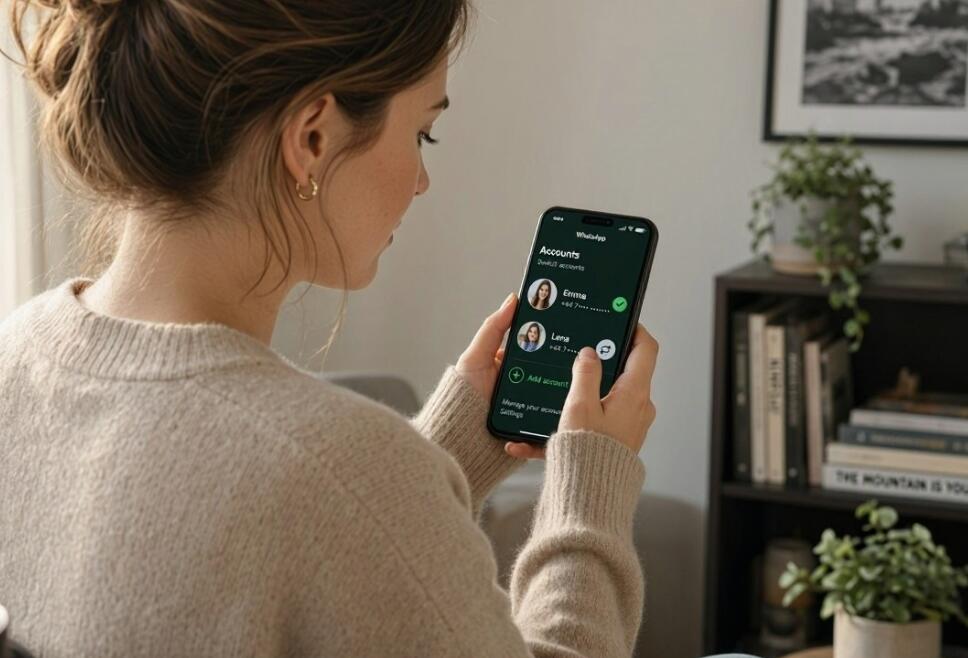
WhatsApp's multiple-account feature allows users to add a second account within the same application on supported devices. Once configured, you can switch between accounts without repeatedly logging out, reinstalling the app, or transferring conversations.
There are also alternative methods, particularly on Android smartphones. Manufacturers such as Samsung and Xiaomi provide app-cloning or dual-app features that allow two separate instances of WhatsApp to run simultaneously.
Here are the main options:
- WhatsApp's built-in multiple-account feature: Add and manage two accounts directly inside the official application.
- Android Dual Apps or App Clone: Create a second WhatsApp installation using your phone's built-in settings.
- WhatsApp Business: Use the standard WhatsApp application for one number and WhatsApp Business for another.
- iPhone account management: Use WhatsApp's built-in account feature or combine WhatsApp Messenger with WhatsApp Business.
How to Log In to Two WhatsApp Accounts on Android
Android generally offers more flexibility when it comes to running multiple WhatsApp accounts. Depending on your device and operating system version, you can choose between WhatsApp's built-in account feature and your manufacturer's app-cloning functionality.
Method 1: Use WhatsApp's Built-In Multiple-Account Feature
This is one of the easiest ways to manage two WhatsApp accounts without installing another copy of the application.
- Open WhatsApp on your Android smartphone.
- Tap the three-dot menu in the upper-right corner, then open Settings.
- Tap the arrow or account-switching option next to your profile information, if displayed.
- Select Add account.
- Read and accept the relevant terms and conditions.
- Enter the phone number associated with your second WhatsApp account.
- Verify the number using the SMS code or phone verification method provided.
- Complete your profile setup and configure your privacy preferences.
- Use the account-switching menu to move between your two accounts.
After setup, both accounts can remain logged in simultaneously. Each account maintains its own chats, notifications, profile information, and privacy settings. The exact menu layout may vary depending on your WhatsApp version.
Method 2: Use Android's Dual Apps or App Clone Feature
If your smartphone does not support WhatsApp's built-in multiple-account feature, you may be able to create a second installation through your device settings.
- Open your phone's Settings application.
- Search for a feature named Dual Apps, Dual Messenger, App Clone, or Parallel Apps.
- Open the feature and locate WhatsApp in the supported application list.
- Enable the cloning option for WhatsApp.
- Wait for your phone to create a second WhatsApp icon.
- Open the cloned application from your home screen or app drawer.
- Register it using your second phone number.
- Complete SMS or call verification and configure your account.
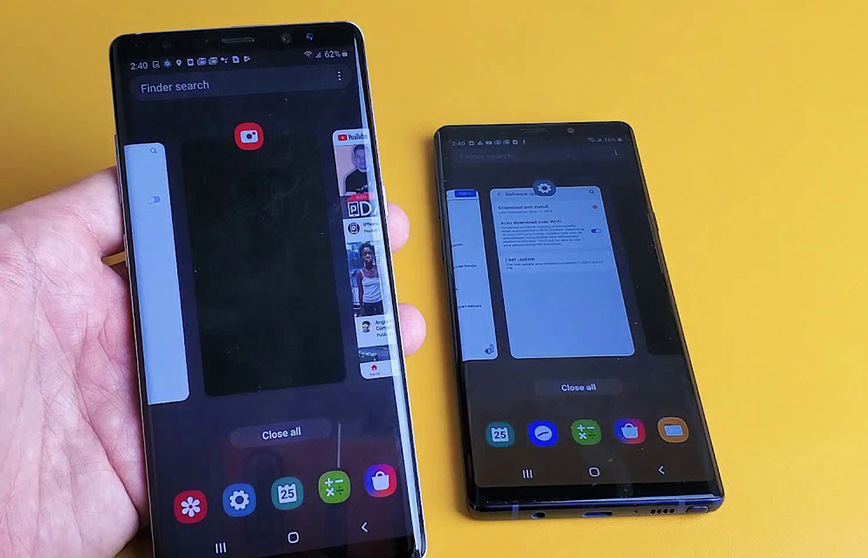
Feature names and availability differ between manufacturers. For example, Samsung devices commonly offer Dual Messenger, while Xiaomi devices may provide Dual Apps. If your phone does not have this feature, consider using the official WhatsApp Business application instead. Read more: "How to clone WhatsApp in Samsung?" and "How to clone apps in OPPO?"
How to Log In to Two WhatsApp Accounts on iPhone
iPhone users also have convenient ways to manage two WhatsApp accounts, although iOS does not provide the same system-level app-cloning options found on many Android smartphones.
Method 1: Add a Second Account in WhatsApp
If your WhatsApp version supports multiple accounts on iOS, you can add another account directly within the application.
- Open WhatsApp on your iPhone.
- Navigate to the Settings tab.
- Tap the account-switching option or the arrow beside your profile information, if available.
- Select Add Account.
- Enter the phone number you want to use for your second account.
- Verify the number using the code sent by SMS or another available verification method.
- Follow the setup instructions to configure your second profile.
- Switch between accounts using the account menu whenever necessary.
If the Add Account option is unavailable, update WhatsApp through the App Store and check again. Feature availability may depend on the application version and rollout status. Read more: How to clone WhatsApp on iPhone?
Method 2: Use WhatsApp Messenger and WhatsApp Business
Another practical option is to install WhatsApp Business alongside the standard WhatsApp application. Both are official applications developed by WhatsApp and can operate independently using different phone numbers.
- Open the App Store on your iPhone.
- Search for WhatsApp Messenger and install it if you have not already done so.
- Search for WhatsApp Business and install the official application.
- Open WhatsApp Business and agree to its terms.
- Register using your second phone number.
- Complete the verification process.
- Set up your business profile, or use the available profile settings if you are using it for personal communication.
- Keep both applications installed to access your two accounts independently.
This approach is especially useful for people who want separate personal and professional communication. WhatsApp Business also offers additional features, including business profiles, greeting messages, away messages, and product catalogs.
Important Things to Consider When Using Two WhatsApp Accounts
Running two accounts on one phone is convenient, but there are several practical details worth considering before getting started.
Use Two Different Phone Numbers
Every WhatsApp account requires a unique phone number for registration. You can use two physical SIM cards, a combination of a physical SIM and an eSIM, or another supported number that can receive the required verification code. Both numbers do not necessarily need to be active in the same way after registration, but you should retain access to them for future verification.
Manage Notifications Separately
When two accounts are active, notifications from both may appear on your phone. Adjust notification sounds, previews, and privacy settings to distinguish personal messages from work conversations. You can also customize notification preferences within each account.
Protect Your Privacy and Security
Enable two-step verification on both accounts and use a secure screen lock. Review linked devices regularly and avoid sharing verification codes with anyone. Download WhatsApp applications only from the official Google Play Store or Apple App Store. Avoid unofficial modified applications, as they may expose your messages and personal information to security risks.
Troubleshooting Common Problems With Two WhatsApp Accounts
Although the setup process is usually straightforward, you may occasionally encounter problems when adding or switching between accounts.
Unable to Add a Second Account
If the Add Account option does not appear, update WhatsApp to the latest available version. If the feature is still unavailable, use WhatsApp Business or your Android phone's built-in cloning feature.
Verification Code Not Received
Check that the second phone number is correct, has network coverage, and can receive SMS messages or calls. Avoid requesting verification codes repeatedly within a short period, as this may trigger temporary restrictions. Read more: How to fix a phone that failed to send SMS messages?
Notifications Are Not Working Properly
Check your phone's notification permissions, background activity settings, battery optimization options, and internet connection. Make sure notifications are enabled separately for both applications or accounts.
Messages or Contacts Appear in the Wrong Account
Confirm which account is currently active before sending messages. Review your contact permissions and chat lists, and remember that each WhatsApp account maintains its own conversation history.
For additional troubleshooting, consult the official WhatsApp Help Center rather than installing third-party applications that claim to fix account problems.
Frequently Asked Questions About Using Two WhatsApp Accounts
Can I use two WhatsApp accounts with one phone number?
No. Each WhatsApp account requires a separate phone number. You need two different numbers to maintain two independent accounts on one device.
Can I receive messages from both accounts simultaneously?
Yes. When both accounts are properly configured and connected to the internet, you can receive notifications from both. You do not need to remain inside each account to receive incoming messages.
Will switching accounts delete my conversations?
No. Switching between properly configured accounts does not automatically delete chat histories. However, you should back up important conversations before making significant account changes or reinstalling applications.
Is WhatsApp Business free to use?
Yes. The WhatsApp Business application is free to download and offers several additional business communication tools. Some optional business services may have separate charges.
Can I use two WhatsApp accounts on one phone without two SIM cards?
Yes, provided you have access to two different phone numbers for registration and verification. You do not necessarily need two physical SIM cards installed simultaneously. An eSIM or another supported number can also be used.
Conclusion
Logging in to two WhatsApp accounts on one phone is a practical way to separate personal and professional communication without carrying an additional device. Android users can take advantage of WhatsApp's built-in multiple-account feature, Dual Messenger, Dual Apps, or WhatsApp Business. iPhone users can use the built-in account-switching feature when available or install WhatsApp Business alongside the standard application.
Ultimately, the best method depends on your smartphone, operating system, and communication needs. Make sure each account uses a different phone number, keep both applications updated, and enable appropriate security settings. With the right setup, you can manage two WhatsApp accounts conveniently, switch between conversations easily, and keep your digital communication better organized.