How to fix an Android TV box stuck on the startup screen?
Welcome to Blackview (Which offers best 4K projector for home, rugged phone with projector built in, and more) blog. Hope this guide helps.
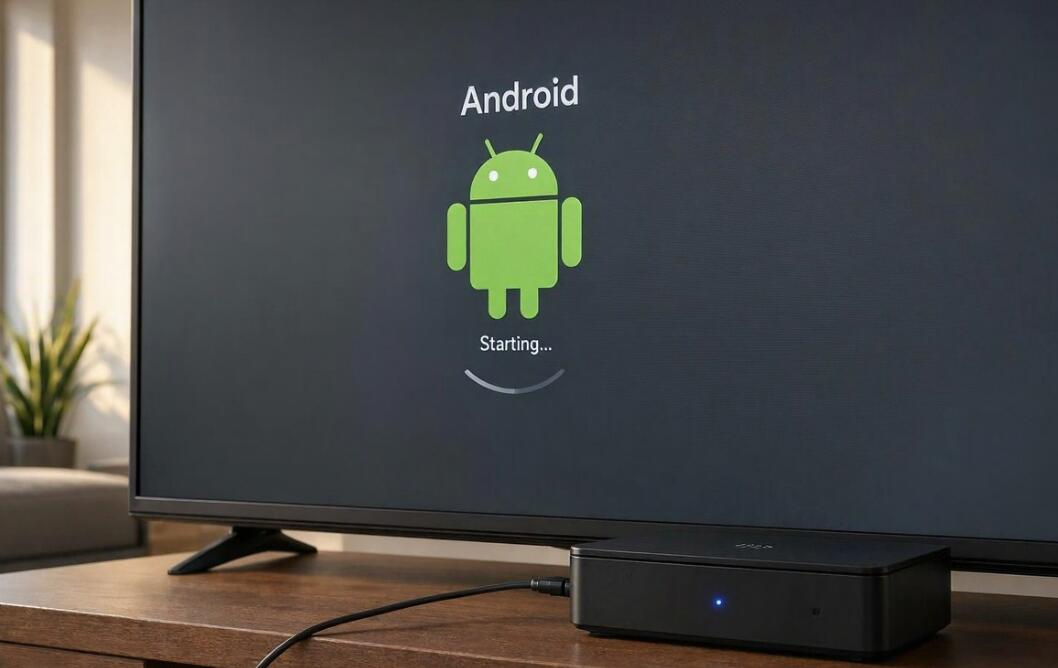
An Android TV box stuck on the startup screen can be frustrating, especially when the device continuously displays its brand logo without loading the home screen. This problem may occur after a system update, an unexpected shutdown, or the installation of a new application. Sometimes, the device freezes during the Android animation, while other times, it repeatedly restarts without reaching the main interface. Fortunately, several troubleshooting methods can help restore normal operation without immediately replacing the device.
- Read also: How to fix a TV box reset button that is not working?
- How to fix an Android TV box that won't turn on?
- How to fix a TV Box not connecting to the TV?
- How to fix an Android TV box wifi keeps turning off?
Understanding the possible causes is essential before attempting any repairs. Startup failures can result from corrupted firmware, insufficient storage, unstable power delivery, incompatible applications, or hardware damage. The following guide explains these common problems and provides practical solutions, beginning with simple troubleshooting methods and progressing to more advanced recovery procedures.
Common Reasons an Android TV Box Gets Stuck on the Startup Screen
Before fixing the problem, identify what might be preventing the device from completing its boot process. Understanding the underlying cause can help you choose the appropriate solution and avoid unnecessary data loss.
Corrupted System Files
Android TV boxes depend on system files and firmware to initialize hardware components and load the operating system. Interrupted updates, unexpected power failures, or unsuccessful software installations can corrupt essential files. Consequently, the device may become stuck on the manufacturer's logo or repeatedly restart during booting.
Insufficient Internal Storage
When internal storage becomes nearly full, the operating system may struggle to create temporary files and initialize essential services. Excessive application data, cached files, and incomplete downloads can contribute to startup problems, particularly on older devices with limited storage capacity.
Unstable Power Supply
An incompatible or damaged power adapter may prevent the TV box from receiving sufficient electricity. Loose connections, defective cables, and unstable power delivery can cause freezing, unexpected shutdowns, or repeated boot loops.
Incompatible Applications or Firmware
Applications installed from unreliable sources may interfere with system operations. Similarly, installing firmware designed for another TV box model or hardware revision can damage essential system components and prevent the device from starting correctly.
Hardware Failure and Overheating
Failing internal storage, motherboard damage, and excessive operating temperatures can also interrupt the startup process. If the device remains unresponsive after software troubleshooting, a hardware-related issue may require professional inspection.
Effective Methods to Fix an Android TV Box Stuck on the Startup Screen
Once you understand the possible causes, try the following troubleshooting methods in order. Start with basic checks before attempting procedures that erase personal data or modify system firmware.
Perform a Complete Power Cycle
A temporary software glitch may prevent Android from completing startup. Disconnecting the device from its power source can help clear temporary errors and allow the system to restart.
- Turn off the Android TV box and unplug its power adapter.
- Disconnect the HDMI cable, USB devices, and memory cards.
- Leave the device disconnected for approximately two to five minutes.
- Reconnect the power adapter and HDMI cable.
- Turn on the device and check whether the home screen loads normally.
If the device starts successfully, reconnect external accessories individually to determine whether one of them caused the problem.
Check the Power Adapter and Connections
Inspect the power adapter, cable, and connector for visible damage. If possible, test the device with a compatible replacement adapter that meets the manufacturer's voltage, polarity, and current specifications. Never use an adapter with an incorrect voltage, as this could damage the TV box.
Disconnect External Storage Devices
USB flash drives, external hard drives, and microSD cards can sometimes interfere with the boot process, especially when they contain corrupted files or use an unsupported file system.
- Remove all USB storage devices and memory cards.
- Disconnect unnecessary peripherals.
- Restart the TV box without external accessories.
- Reconnect each accessory separately after the device starts.
Enter Recovery Mode and Clear the Cache
Recovery mode provides access to troubleshooting options without loading the normal Android interface. The exact procedure varies by manufacturer and model.
- Disconnect the TV box from its power source.
- Locate the physical reset button, which may be inside the AV port or a small opening on the device.
- Press and hold the reset button using an appropriate tool.
- Reconnect the power while continuing to hold the button.
- Release the button when the recovery menu appears.
- If available, select "Wipe Cache Partition" using the remote control or a connected USB keyboard.
- Choose "Reboot System Now" after the operation finishes.
Not all Android TV boxes provide a separate cache-clearing option. Avoid selecting factory reset or data-wiping options unless you understand their consequences.
Perform a Factory Reset
If the previous methods fail, a factory reset may resolve persistent software problems. This operation restores the original system configuration but removes installed applications, accounts, settings, and locally stored user data.
- Enter recovery mode using the manufacturer's instructions.
- Find the "Wipe Data/Factory Reset" option.
- Confirm the operation when prompted.
- Wait for the reset process to finish.
- Select "Reboot System Now" to restart the device.
Consider this method a later troubleshooting option because it permanently erases local data. It also cannot repair physical hardware damage.
Reinstall or Update the Android TV Box Firmware
If the device remains stuck after a factory reset, its firmware may be damaged. Reinstalling the operating system can sometimes restore normal functionality, but the procedure requires careful preparation.
Download the Correct Firmware
Visit the manufacturer's official website and find firmware specifically designed for your exact TV box model and hardware revision. Devices with similar appearances may contain different processors, memory configurations, and wireless chipsets. Installing incompatible firmware can permanently disable the device.
Prepare a USB Drive or MicroSD Card
Follow the manufacturer's instructions to format a compatible storage device and copy the firmware files. Some models require specific filenames, directory structures, or flashing utilities. Do not modify the firmware package unless explicitly instructed.
Install the Firmware
Connect the prepared storage device and enter the designated recovery or flashing mode. Follow the model-specific installation instructions carefully. Do not disconnect the power during installation, as interruptions may cause additional system damage. Once installation finishes, restart the TV box and allow sufficient time for its initial boot.
When to Seek Professional Repair or Replace the Device
If the Android TV box continues freezing after a verified firmware installation, the problem may involve failing internal storage, motherboard damage, or overheating. Unusual heat, repeated restarts, and an unresponsive reset button are potential signs of hardware failure.
If the device is still under warranty, contact the manufacturer or an authorized service provider before opening its casing. When repair costs approach the price of a replacement, purchasing a newer and more reliable Android TV box may be the more economical decision.
How to Prevent Android TV Box Startup Problems
Regular maintenance can reduce the likelihood of recurring startup failures and extend the lifespan of your device. Follow these practical recommendations:
- Install system updates only from trusted manufacturer sources.
- Keep sufficient internal storage available by removing unused applications.
- Avoid installing unverified APK files or incompatible software.
- Use the original power adapter or a manufacturer-approved replacement.
- Keep ventilation openings clear and avoid placing the device near heat sources.
- Shut down the device properly whenever possible.
- Back up important files and settings before performing major system changes.
Conclusion
An Android TV box stuck on the startup screen does not necessarily mean that the device is permanently damaged. In many cases, the problem is caused by temporary software glitches, unstable power delivery, corrupted system files, or incompatible external accessories. Starting with a complete power cycle, checking connections, and disconnecting external storage devices can often resolve basic startup issues.
When these solutions are unsuccessful, recovery mode, a factory reset, or a carefully selected firmware reinstall may help restore normal operation. However, always verify firmware compatibility and understand the risk of data loss before proceeding. With proper troubleshooting and regular maintenance, you can improve your Android TV box's reliability and potentially avoid the expense of purchasing a replacement.