My Android TV box cannot find WiFi network, how to do?
Welcome to Blackview (Which offers best 4K projector for home, and more) blog. Hope this guide helps.
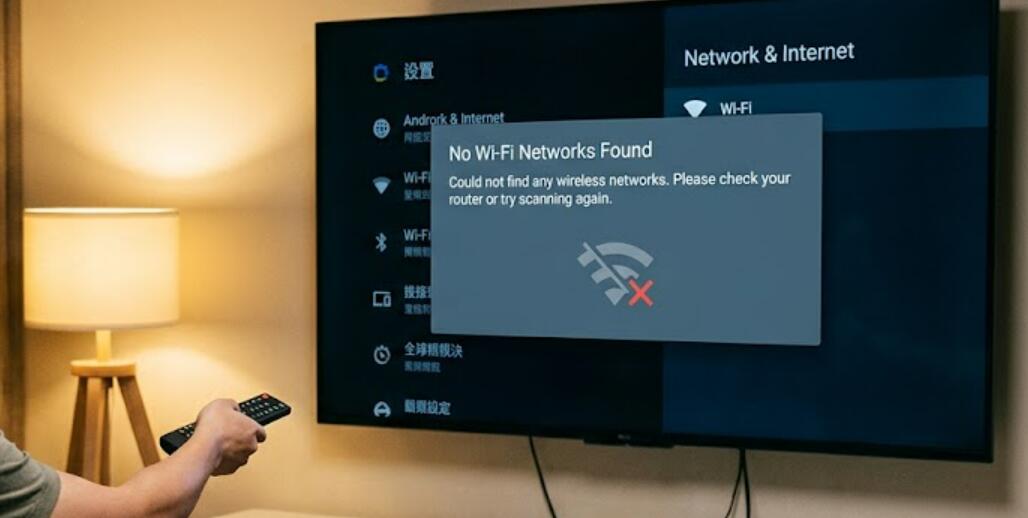
If your Android TV box cannot detect any WiFi network, it can quickly become frustrating because most streaming services, apps, and online features require a stable internet connection. A missing WiFi network does not always indicate a hardware failure. In many cases, the problem is caused by temporary software glitches, router settings, wireless interference, outdated firmware, or incorrect network configurations. Fortunately, most of these issues can be resolved with a few simple troubleshooting steps.
- Read also: How to fix an Android TV box that won't turn on?
- How to fix an Android TV box keeps restarting?
- How to fix an Android TV box that keeps flashing on and off?
Before assuming that your Android TV box is defective, it is important to perform a systematic diagnosis. Checking your wireless router, verifying the TV box settings, and restarting both devices can often restore the WiFi connection within minutes. This guide explains the most common causes of WiFi detection problems and provides step-by-step solutions to help your Android TV box reconnect to available wireless networks.
Whether your Android TV box suddenly stopped detecting WiFi or has never found any wireless network since the first setup, following the correct troubleshooting process can save both time and unnecessary repair costs. Work through each solution in order, as many connectivity problems are resolved by basic configuration changes before more advanced troubleshooting becomes necessary.
Common Reasons Why an Android TV Box Cannot Find WiFi
Several factors can prevent your Android TV box from displaying available wireless networks. Understanding these possible causes makes it easier to identify the correct solution.
- Temporary software bugs after startup.
- The wireless router is turned off or malfunctioning.
- The TV box is too far from the router.
- WiFi broadcasting has been disabled on the router.
- Wireless interference from nearby electronic devices.
- Outdated Android TV firmware.
- Unsupported WiFi frequency or security settings.
- Hardware problems with the TV box's wireless adapter.
Step-by-Step Solutions to Fix the Problem
Follow the troubleshooting steps below in order. After completing each step, check whether your Android TV box can detect available WiFi networks.
Step 1: Restart the Android TV Box
A simple restart can clear temporary software errors affecting wireless connectivity.
- Turn off the Android TV box.
- Unplug the power cable.
- Wait for 30 to 60 seconds.
- Reconnect the power cable.
- Turn on the device and scan for WiFi again.
Step 2: Restart Your WiFi Router
Router issues can sometimes prevent devices from discovering wireless networks.
- Turn off your router.
- Disconnect its power for one minute.
- Reconnect the router and wait until all indicator lights become stable.
- Search for available WiFi networks again on the TV box.
Step 3: Move the TV Box Closer to the Router
Weak wireless signals may prevent nearby networks from appearing during scanning.
- Place the Android TV box within a shorter distance of the router.
- Remove obstacles such as thick walls or large furniture.
- Avoid placing the TV box near microwaves or cordless phones.
- Scan for WiFi once more.
Step 4: Check Router WiFi Settings
Incorrect router settings may hide your wireless network or prevent compatible connections.
- Log into your router's management page.
- Confirm that WiFi broadcasting is enabled.
- Verify that both 2.4 GHz and 5 GHz networks are active if supported.
- Use a common security mode such as WPA2 or WPA3 when supported.
- Save the settings and restart the router if necessary.
Step 5: Update the Android TV Box Software
Firmware updates often include wireless driver improvements and bug fixes.
- Open the Settings menu.
- Select System or Device Preferences.
- Choose Software Update.
- Download and install any available updates.
- Restart the TV box after installation.
Step 6: Reset Network Settings or Factory Reset
If previous solutions fail, resetting the device may remove corrupted network configurations.
- Back up important application data if necessary.
- Open Settings.
- Select Device Preferences.
- Choose Reset or Factory Reset.
- Follow the on-screen instructions.
- Set up the TV box again and search for WiFi networks.
Additional Troubleshooting Tips
If the problem continues, consider these additional checks before assuming a hardware failure.
- Test whether other devices can detect the same WiFi network.
- Connect the TV box using an Ethernet cable if available.
- Try connecting to a mobile hotspot.
- Remove recently connected USB accessories that may cause interference.
- Check whether airplane mode or wireless settings have been disabled.
- Inspect the TV box for signs of physical damage or overheating.
When Hardware Repair May Be Necessary
If no WiFi networks appear even after completing all troubleshooting steps, the internal wireless module may be damaged. Testing the device on multiple routers can help confirm whether the issue is hardware-related. In such cases, contacting the manufacturer or a qualified repair technician may be the most effective solution.
Most Android TV boxes that cannot find WiFi networks can be repaired without replacing any hardware. Restarting the device, checking router settings, updating firmware, and resetting network configurations solve the majority of wireless detection problems. Following each troubleshooting step carefully helps identify the exact cause while avoiding unnecessary repairs.
If your Android TV box still cannot detect any wireless network after trying every solution in this guide, testing with another router or using a wired Ethernet connection can help determine whether the issue is caused by the network or the device itself. If a hardware fault is confirmed, professional repair or replacement of the wireless module may be the best long-term solution to restore reliable internet connectivity.