How to turn on or disable emergency alerts on Android devices?
Last updated: 2026-09-18
Welcome to Blackview (World's well-known brand of rugged phone) blog. Hope the guide has been helpful.
Emergency alerts on Android devices are designed to deliver urgent information about situations such as severe weather, public safety threats, missing persons, or other events that may require immediate attention. Although these notifications can be useful, some people may prefer to reduce or disable certain categories because of frequent alerts, loud notification sounds, interruptions during meetings, or personal preferences. The available controls depend on the Android version, phone manufacturer, mobile carrier, and country or region.
- Read also: How to turn off power saving mode on Android?
- How do I hide text messages on Android?
- How do I turn off NFC on my phone?
- How to turn off call forwarding on Android?
Before turning anything off, it is worth understanding that Android emergency-alert settings are not identical on every phone. A Samsung Galaxy may organize the controls differently from a Google Pixel, while regional wireless-alert systems can impose additional restrictions. Some of the most serious government or public-safety alerts may also be difficult or impossible to disable through ordinary settings. The safest approach is therefore to review each alert category and disable only the types you do not want to receive.
How to turn off emergency alerts on Android
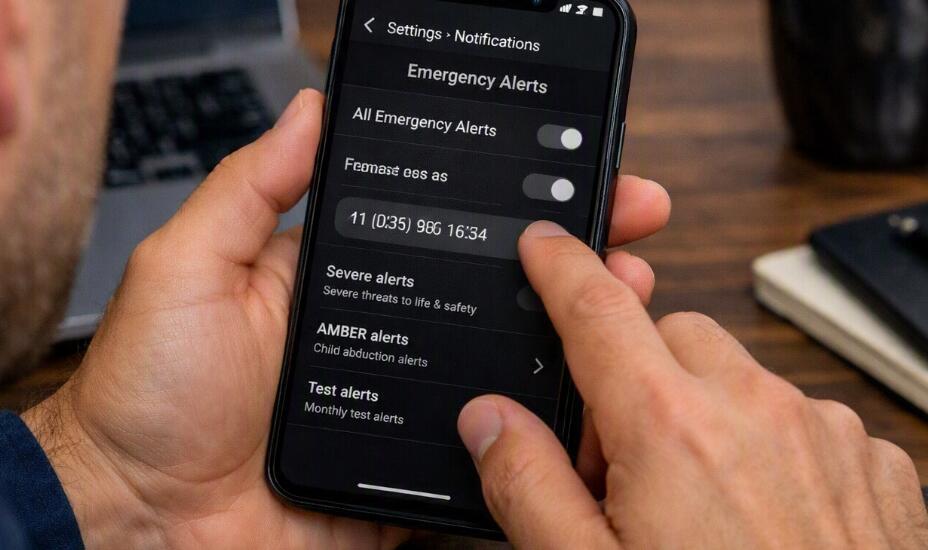
The exact names of menus can vary, but many recent Android phones place emergency-alert controls under the Safety and emergency, Notifications, or Wireless emergency alerts section. Start with the following general procedure:
- Open the Settings app on your Android phone.
- Use the Settings search bar and search for Emergency alerts, Wireless emergency alerts, or Emergency notifications.
- Tap the matching emergency-alert or wireless-alert settings page.
- Review the available alert categories, such as severe threats, extreme threats, public safety messages, missing-person alerts, or test alerts.
- Turn off the specific categories you do not want to receive, if your device allows them to be disabled.
- If available, review options for Alert sound, Vibration, Reminder frequency, or similar notification behavior.
- Close Settings and wait for the changes to take effect.
If you cannot find the setting using the menus, searching within Settings is often the quickest method. Type terms such as “emergency,” “wireless alerts,” or “public safety” because manufacturers can use different labels for similar controls.
How to turn off emergency alerts on Samsung Galaxy
Samsung Galaxy phones can place emergency-alert controls in the notification settings or within a dedicated emergency-alert menu. Because the menu structure changes between One UI versions and regions, use Settings search if the options below are not displayed exactly as written.
- Open Settings.
- Tap Notifications, if available.
- Look for Advanced settings or an option related to Wireless emergency alerts.
- Open the emergency-alert settings.
- Review the individual alert categories.
- Switch off the categories that your device permits you to disable.
- Check any separate sound or vibration controls if you only want to reduce interruptions rather than stop the alerts entirely.
On some Galaxy models, you may find the same controls under Safety and emergency instead. If neither route works, search Settings for “emergency alerts.” The result can take you directly to the relevant control when the feature is supported by the device and carrier.
How to turn off emergency alerts on Google Pixel
Google Pixel devices use relatively streamlined Android settings, but the exact menu can still depend on the Android release and local wireless-alert system. The easiest method is usually to search Settings for the relevant feature.
- Open Settings.
- Tap the Settings search field.
- Enter Emergency alerts or Wireless emergency alerts.
- Open the corresponding settings page.
- Review the available alert categories and notification controls.
- Disable the categories that are available for you to switch off.
If the search produces no matching option, your carrier or regional configuration may handle emergency notifications differently. In that situation, check the phone's Safety & emergency section and make sure Android is fully updated before troubleshooting further.
Five important things to know about disabling emergency alerts
1. Some alerts may not be optional
Not every emergency notification can necessarily be disabled. Governments, carriers, and local authorities can establish rules governing specific classes of wireless emergency messages. A phone may therefore provide switches for some categories while keeping others mandatory. If a particular toggle is missing or unavailable, it does not necessarily indicate a problem with your phone.
2. Turning off sound is different from turning off alerts
If your main concern is the sudden loud tone rather than the information itself, look for controls related to sound, vibration, or notification behavior before disabling an entire alert category. Some Android versions provide separate controls that let you change how an alert is presented. This can be a useful alternative when you still want access to emergency information but prefer fewer audible interruptions.
3. Test alerts can have separate settings
Some devices and wireless-alert systems provide options for test messages. These may be used by authorities, carriers, or other organizations to verify that emergency-notification infrastructure is functioning correctly. If your phone provides a dedicated test-alert switch, review it separately from genuine emergency categories. Do not assume that disabling test notifications will disable actual emergency warnings.
4. Settings can change after Android or carrier updates
Android manufacturers periodically change their menus, notification systems, and safety features. Carrier configurations can also affect which wireless alerts appear on a particular device. If an option disappears after an update, search Settings again rather than assuming the feature has been removed completely. A system update may also restore default notification preferences, so it is worth reviewing the emergency-alert page after a major software update.
5. Emergency alerts are different from ordinary app notifications
Emergency alerts are not simply notifications from an application such as WhatsApp, Gmail, or a news service. They can be delivered through specialized wireless systems and may operate independently of ordinary app-notification permissions. Consequently, muting individual apps or enabling Android's general Do Not Disturb mode may not have the same effect as changing the dedicated emergency-alert settings.
What to do if emergency alerts keep appearing
If alerts continue after you change the settings, first confirm which category is generating them. Open the notification history if your Android version provides that feature, or inspect the alert details to identify whether it is a government emergency message, a test message, a carrier notification, or an ordinary app notification. Then return to the appropriate settings page and check whether the corresponding category is actually disabled.
If the relevant switch is unavailable, your device may be subject to local requirements or carrier restrictions. Check your manufacturer's support documentation or contact your mobile carrier for information specific to your model and region. Avoid installing third-party applications that claim to forcibly disable system emergency broadcasts, particularly if they require extensive permissions.
How to restore emergency alerts later
If you change your mind, restoring the settings is generally straightforward. Return to the same emergency-alert menu and switch the desired categories back on. If you previously changed sound or vibration behavior, restore those options separately. It is useful to review the settings after a factory reset, SIM change, major Android update, or carrier change because system configurations can vary after significant device changes.
Frequently asked questions
Will turning off emergency alerts delete anything?
Changing an emergency-alert preference normally does not delete photos, messages, applications, or other personal files. It changes how supported emergency notifications are delivered. However, the exact behavior depends on the device and regional system.
Why can't I turn off every emergency alert?
Some alert categories may be controlled by government or carrier requirements and may not be user-disableable. If a switch is unavailable, the restriction may be intentional rather than a software error.
Can I silence emergency alerts instead?
On some Android devices, yes. Look for separate controls for alert sounds, vibration, reminders, or notification behavior. The available choices depend on the phone, Android version, carrier, and region.
Final checklist
When managing emergency alerts, begin with the built-in Android settings rather than third-party tools. Search Settings for “Emergency alerts” or “Wireless emergency alerts,” review each available category, and change only the options your device permits. If you mainly want to prevent loud interruptions, investigate sound and vibration controls before disabling an entire category.
Android emergency-alert settings vary considerably by device and region, so there is no single menu path that works for every phone. Samsung Galaxy, Google Pixel, and other Android devices can place the controls in different sections, and certain alerts may remain mandatory. If an option cannot be changed, checking your device manufacturer and carrier documentation is the most reliable way to determine why.
After making changes, periodically review the settings following major Android updates or carrier changes. This helps ensure that your notification preferences still match what you want while making you aware of which emergency messages remain enabled.