How do I disable the WhatsApp passcode on iPhone?
Welcome to Blackview (World's well-known brand of rugged smartphones, AI smart glasses, and tablets) blog. Hope this guide has been helpful.
WhatsApp can add an extra layer of privacy on an iPhone by requiring a passcode or authentication before protected content can be accessed. While this feature can be useful when you share your phone with others or want additional privacy, you may eventually decide that entering a passcode every time is inconvenient. If you are trying to disable a WhatsApp passcode, the exact steps depend on which security feature you enabled.
- How to retrieve deleted WhatsApp messages?
- If you archive someone on WhatsApp, can you see their status or get their calls?
- How to know if someone muted you on WhatsApp?
- Ways to lock apps on iPhone
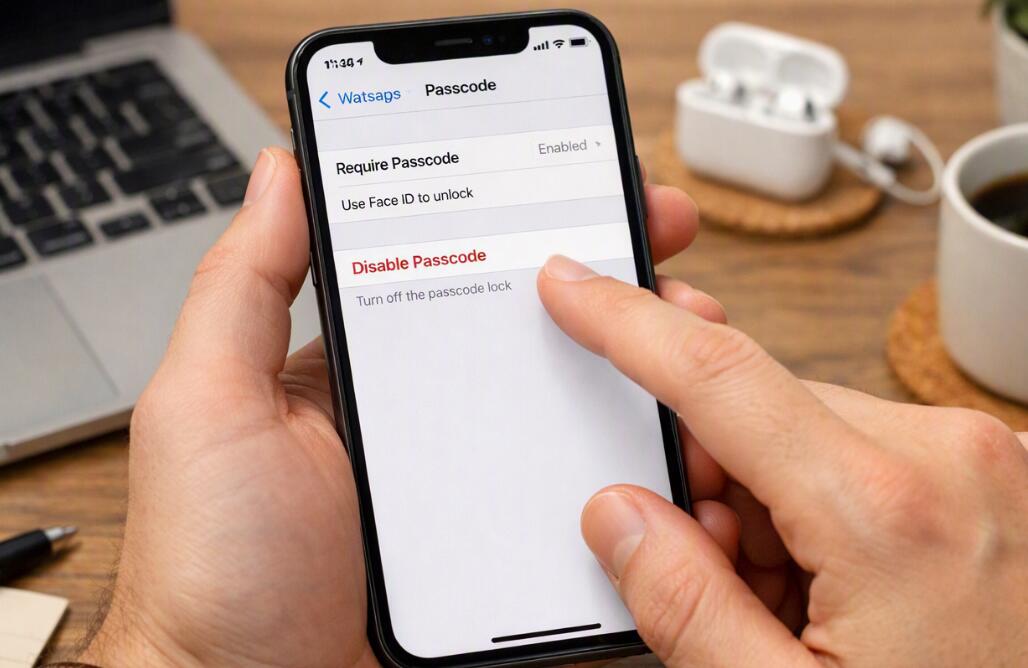
WhatsApp may use Face ID, Touch ID, or another device authentication method to protect access to the application or locked chats. These features are separate from your WhatsApp account password or two-step verification PIN. Before changing the setting, identify which protection you want to turn off so that you do not accidentally change a different security feature.
Steps to disable WhatsApp app lock on iPhone
If WhatsApp is asking you to authenticate with Face ID or another iPhone security method whenever you open the app, you can usually disable the app-lock setting from WhatsApp's privacy settings.
- Open WhatsApp on your iPhone.
- Tap Settings in the bottom-right corner.
- Tap Privacy.
- Look for App Lock or the related screen-lock option.
- Turn off Require Face ID or the corresponding authentication setting.
- Authenticate with Face ID, Touch ID, or your iPhone passcode if WhatsApp asks you to verify the change.
- Close and reopen WhatsApp to confirm that the additional app lock is no longer required.
If the option names on your iPhone are different, check the latest WhatsApp settings available on your device. WhatsApp can change menu names and locations as new versions are released, and some security options may vary according to the iOS version and device capabilities.
Understand the difference between WhatsApp security features
Not every WhatsApp passcode prompt means the same thing. App Lock protects access to WhatsApp itself, while Chat Lock protects selected conversations. WhatsApp also offers two-step verification, which uses a PIN associated with your WhatsApp account and is primarily intended to help protect account registration. Turning off one feature does not necessarily disable the others.
App Lock
App Lock can require biometric authentication when you open WhatsApp. If your goal is to stop Face ID from appearing every time you launch the application, this is the setting you should investigate first.
Chat Lock
Chat Lock is designed to hide and protect specific conversations. If only certain chats require additional authentication, disabling the general app lock may not remove that protection. You may need to open the relevant locked-chat settings and change the protection separately.
Two-step verification
Two-step verification is different from an app-opening passcode. It can require a WhatsApp PIN during account-related security checks, such as registering your phone number again. If you want to disable that PIN, use WhatsApp's account settings rather than the App Lock controls.
What if I cannot find the passcode setting?
If you cannot locate the option, first make sure WhatsApp is updated through the App Store. Then open WhatsApp's Settings and review the Privacy section carefully. The wording may differ between versions, so searching for terms such as “App Lock,” “Face ID,” or “Lock” can help identify the relevant control.
Also check whether the prompt is actually generated by WhatsApp. An iPhone can require Face ID or a passcode for other reasons, including device-level restrictions or an iOS feature. If the security prompt appears outside WhatsApp, changing a WhatsApp privacy setting may not affect it.
3. What happens after you disable the passcode?
Disabling an additional WhatsApp app lock generally means the application will no longer request that extra authentication when you open it. Your WhatsApp account, conversations, contacts, and ordinary app settings are not automatically deleted simply because you turned off App Lock.
However, disabling protection reduces the privacy barrier around your conversations. Anyone who can unlock your iPhone may be able to open WhatsApp and view content that was previously protected by the additional authentication step. Consider this before switching the feature off, particularly if other people regularly have access to your device.
4. Troubleshooting and privacy considerations
If WhatsApp continues requesting authentication after you believe you disabled the feature, close and reopen the app and check its Privacy settings again. Installing the latest WhatsApp update and restarting the iPhone can also help when a setting does not appear to respond as expected.
Do not delete WhatsApp simply to remove an authentication prompt. Reinstalling an app is a much more significant step and can create unnecessary complications if your chat history has not been backed up. If the problem persists, verify whether the prompt relates to App Lock, Chat Lock, or two-step verification before taking further action.
For most iPhone users, the key is identifying which WhatsApp security feature is responsible for the passcode or biometric prompt. App Lock, Chat Lock, and two-step verification serve different purposes, so disabling one will not necessarily affect the others.
Once you have identified the correct feature, changing the appropriate privacy or account setting should let you remove the extra authentication without deleting your WhatsApp conversations. Keep in mind that convenience and privacy involve a trade-off: disabling additional protection makes WhatsApp easier to access but can also make private conversations easier for someone with access to your unlocked iPhone to view.