[Newest] How to send a voice message on TikTok on Android or PC?
Welcome to Blackview (World's well-known brand of rugged smartphones, including rugged phone with projector, rugged phone with eSIM, and Android 16 rugged phone, etc.) blog. Hope the guide helps.
TikTok makes it easy to connect with friends through direct messages, shared videos, and other interactive features. Voice messages offer an especially convenient way to communicate when typing feels too slow or when you want your message to sound more personal. Whether you want to share a quick reaction, send a friendly greeting, or explain something in detail, recording your voice can make conversations feel more natural.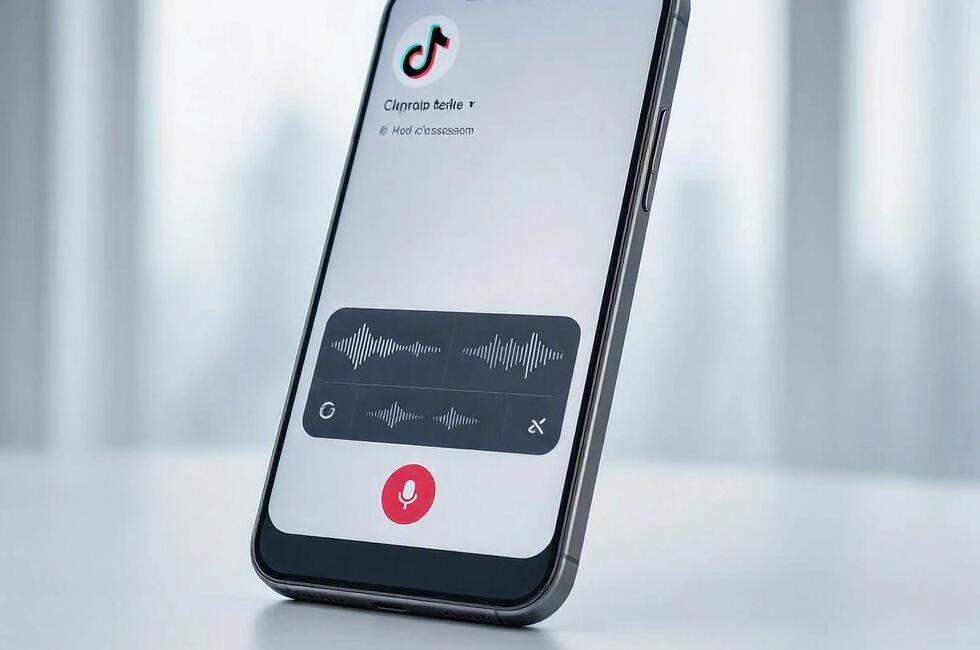
- Read also: How to make a joint TikTok account with your friends?
- Can you create a TikTok account without a phone number?
- How to know if someone blocked you on TikTok?
- How to block someone on TikTok without them knowing?
- If I log into TikTok on another device, will my drafts be deleted?
In this guide, you'll learn how to send a voice message on TikTok using an Android phone or PC, how to use the newer voice comment feature, and what to do if the microphone icon is missing. The instructions cover the available options while keeping in mind that TikTok features can vary by account, region, device, and app version. Now, let's dive in.
Sending a Voice Message on TikTok on Android
Sending a voice message through TikTok's Android app is straightforward when the feature is available on your account. TikTok supports voice notes in direct messages, with recordings of up to 60 seconds.
- Open TikTok on your Android phone and sign in to your account.
- Tap Inbox at the bottom of the screen to access your messages.
- Open an existing conversation or select an eligible recipient to start a chat.
- Look for the microphone icon in the message input area. If it is available, press and hold it to record your voice.
- Speak clearly and keep your recording within the time limit.
- Release the microphone button to send the recording. Depending on the interface, releasing it may send the message immediately, so check the controls before recording.
- If the interface provides a cancellation gesture, follow its on-screen instructions to cancel an unwanted recording before sending it.
Before recording, find a quiet environment and plan what you want to say. Remember that releasing the microphone button may send the message immediately, so avoid experimenting with the control while recording something private.
Sending a Voice Message on TikTok on PC
TikTok can be accessed through a desktop web browser, but its messaging interface does not necessarily offer every feature available in the mobile app. If you want to send a voice message from a PC, first check whether your account's desktop interface supports voice recording.
- Open the official TikTok website in your preferred desktop browser and log in.
- Navigate to your Inbox or direct messages and open the conversation you want to use.
- Inspect the message input area for a microphone or voice-recording button.
- If a recording control is available, allow microphone access when prompted by your browser and operating system.
- Follow the on-screen instructions to record and send your voice message.
- If no microphone control appears, do not assume your microphone is broken. The desktop interface may not support recording voice messages for your account.
- Open TikTok on your Android phone and use the mobile instructions above if the voice-message feature is available there.
There is no guaranteed desktop workaround if TikTok does not provide a voice-recording option in your browser. You can use your PC to type a direct message or access other available messaging features, then switch to the mobile app for voice notes.
Sending Voice Messages in TikTok Comments
TikTok introduced Voice Comments in September 2026, allowing eligible users to post audio comments directly beneath videos. Unlike private voice messages, these recordings appear in a public comment section and can be played by other viewers. The feature is rolling out globally to accounts belonging to users aged 18 and older, so availability may vary during the rollout.
- Open the TikTok mobile app and navigate to a video you want to respond to.
- Tap the Comments button to open the comment section.
- Look for a microphone icon in the comment input area.
- If the feature is available, tap the microphone icon and record your voice comment, following the on-screen instructions.
- Keep the recording within the supported limit of up to 60 seconds.
- Review any available controls, then post your comment as instructed by the app.
- After posting, check the comment section to confirm that your voice comment appears correctly.
Voice comments are different from direct messages: they are intended for participation in a video's discussion rather than private communication. If the microphone icon is missing, your account may not have received the feature yet, or your account may not meet the eligibility requirements.
Why Can't I Send a Voice Message on TikTok?
If you cannot find the microphone icon or your recording will not send, several factors may be responsible. TikTok's direct messaging eligibility rules and privacy settings can affect who you can contact, while feature availability may differ between devices.
- Check your account eligibility. TikTok direct messaging is generally available to users aged 16 and older, subject to applicable regional rules and account restrictions. Voice comments have separate eligibility requirements.
- Update the app. Open Google Play Store, search for TikTok, and install any available update.
- Check messaging settings. Open Profile, tap the menu, select Settings and privacy, and review Privacy and Direct messages.
- Confirm the recipient can receive messages. Privacy settings, message requests, blocked accounts, and mutual-follow requirements can affect communication.
- Check microphone permissions. If recording is available but fails, review TikTok's microphone permission in your Android settings.
- Try another supported interface. If the feature is missing on PC, check the mobile app rather than assuming that every platform supports the same controls.
If the problem continues, restart the app, check your internet connection, and consult TikTok's official Help Center for account-specific guidance.
How to Record Clearer TikTok Voice Messages
Good audio makes voice messages easier to understand and more pleasant to listen to. You do not need professional recording equipment; a few simple adjustments can make a noticeable difference.
- Choose a quiet place. Background conversations, television sounds, and traffic can make your message difficult to hear.
- Speak naturally. Keep your phone at a comfortable distance and use your normal speaking voice.
- Keep messages concise. Focus on one main idea rather than including unnecessary details.
- Check your microphone. Make sure your phone case or fingers are not covering the microphone opening.
- Think before recording. Decide what you want to say so you do not accidentally send an unfinished message.
For important conversations, keep your message organized: briefly explain the reason for contacting the recipient, provide the essential details, and finish with a clear question or response.
Voice Messages vs. Voice Comments: What's the Difference?
Although both features let you communicate through audio, they serve different purposes. Understanding the distinction helps you choose the right way to interact on TikTok.
- Voice messages: Sent through direct messages to communicate privately with eligible recipients.
- Voice comments: Posted beneath a video so other viewers can listen and participate in the discussion.
- Text messages: A useful alternative when recording is unavailable, privacy is important, or the recipient cannot listen to audio.
Before posting a voice comment, remember that it is not equivalent to a private message. Avoid sharing personal information or sensitive details in a public comment section.
Protect Your Privacy When Sending Audio
Voice recordings can reveal more than the words you say. Background conversations, location clues, and personal details may unintentionally become part of a recording. Consider what the recipient or audience could hear before sending or posting.
- Send private information only through an appropriate, trusted communication channel.
- Check the recipient's identity before recording a sensitive message.
- Review your privacy settings and manage unwanted message requests.
- Use TikTok's blocking and reporting tools if you receive inappropriate or unwanted messages.
- Remember that a voice comment may be heard by anyone who can access the video and its comments.
These simple precautions can help you communicate confidently while maintaining control over the information you share.
Final Thoughts
Sending a voice message on TikTok is an easy way to make conversations more personal. On Android, open your Inbox, select a conversation, and look for the microphone control. On a PC, check whether your desktop messaging interface supports voice recording; if it does not, use the mobile app instead. For public interactions, eligible users can also use TikTok's newer Voice Comments feature when it is available on their accounts.
Because TikTok regularly updates its features, the exact controls and availability may change over time. If you cannot find the microphone icon, check your app version, privacy settings, account eligibility, and regional feature availability. With the right settings and a few simple recording habits, you can use voice messages and voice comments to communicate more naturally while keeping your conversations clear and your personal information protected.